
Sell your videos
Upload your videos, set prices once per folder, and they go live on your store. Buyers watch a free 30-second preview, then pay to watch online, rent, download, or cut their own clip.
Add-on on Pro, Business and Enterprise, or the Video plan. 7 steps. Last checked October 5, 2026.
Watch the whole process (2:19, captions on)
 1You
1YouTurn on the Video Store
 2You
2YouUpload videos or whole folders
 3You
3YouSet prices once per folder
 7Buyers
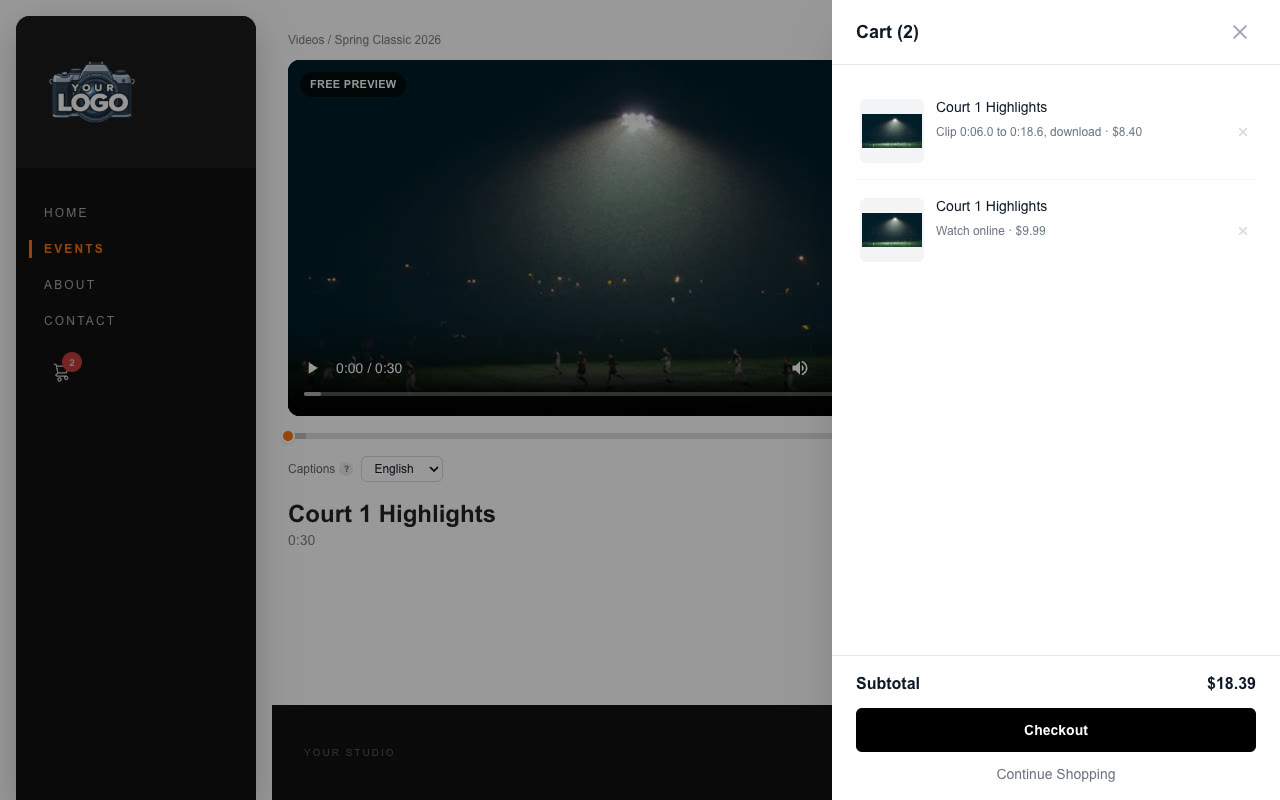
Buyers watch a free preview
 7Buyers
They buy alongside your photos
Step 1 of 7
Turn on the Video Store
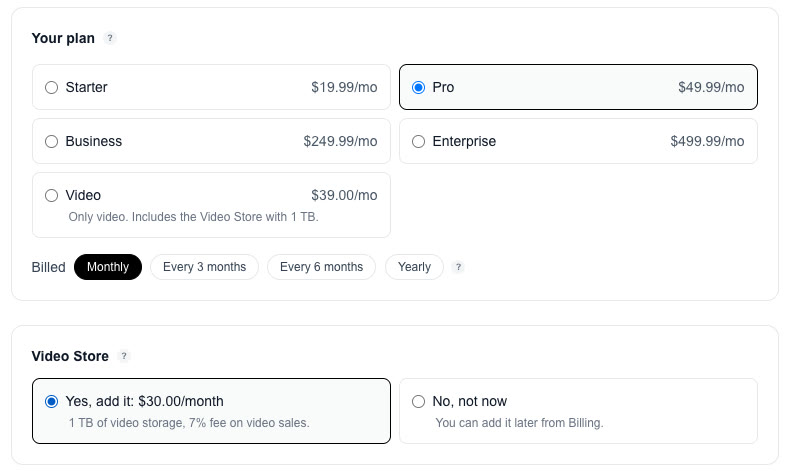
You, onceThe Video Store is an add-on for Pro, Business and Enterprise, or its own plan if you only sell video.
Add it on BillingOpen Billing and press Add more, or pick Yes, add it when you choose your plan. It's a separate monthly line next to your plan, and you can remove it any time.
Or choose the Video planIf you only sell video, the Video plan includes the Video Store with 1 TB. It doesn't sell photos or prints.
a month on Pro, plus 7% of each video sale.
a month on Business, plus 6% of each video sale.
a month on Enterprise, plus 5% of each video sale.
a month for the Video plan, plus 7% of each video sale.
1 TB of video storage is included. Every option includes 1 TB just for video, separate from your photo storage. Past that, each extra TB is $20 a month, added to your bill automatically, and you get a notice when you reach a new one.
Next: step 2
Step 2 of 7
Upload your videos
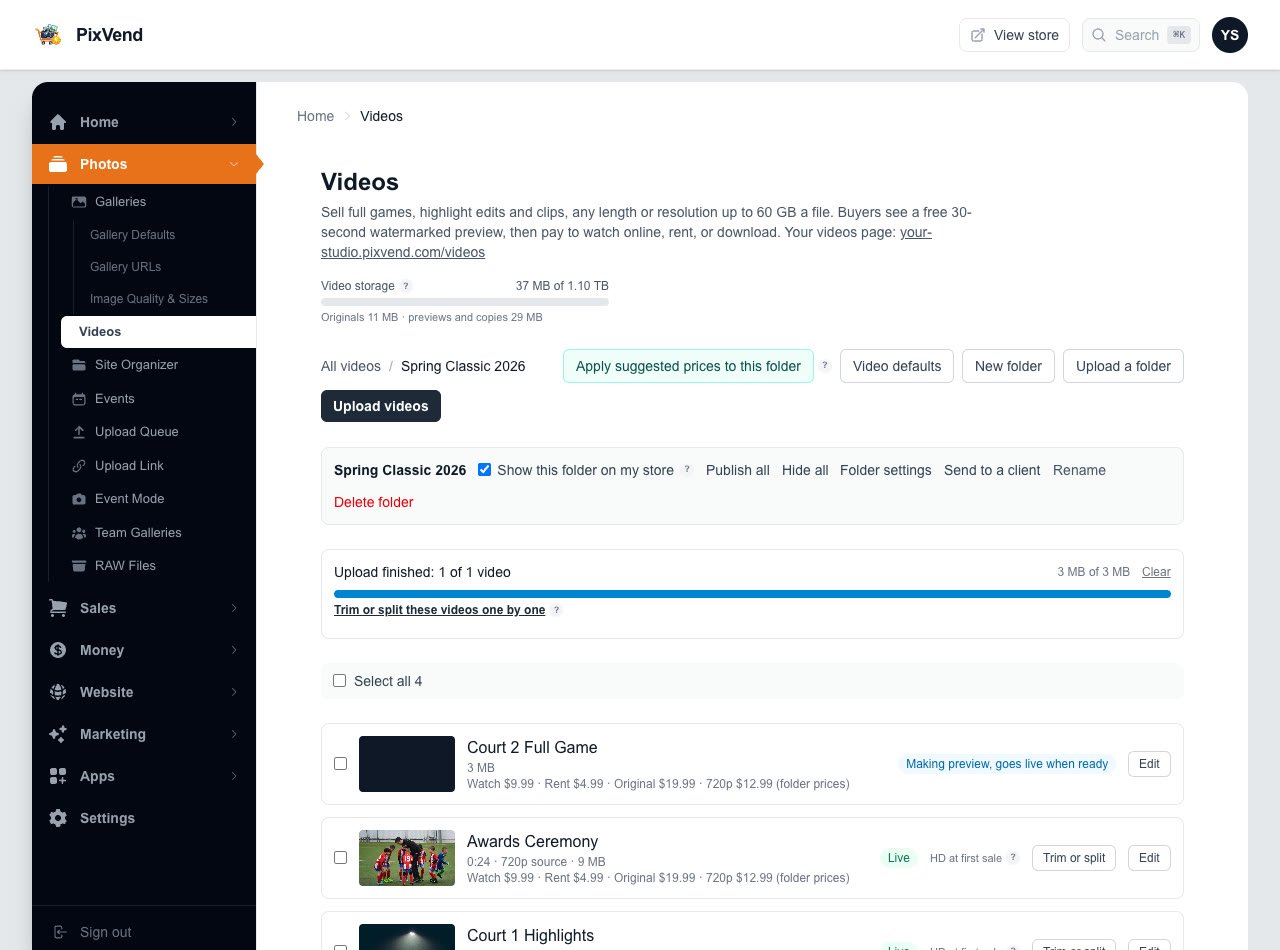
YouOpen Videos under Photos in your dashboard. Any length or resolution, up to 60 GB a file.
Videos in the menuIt sits under Photos. The storage meter at the top shows how much of your video storage you've used: originals, plus the previews and copies PixVend makes.
Upload videos or a whole folderPick files, choose a folder, or drag either anywhere onto the page. Folders inside it become video folders, and each file becomes its own video, titled from its file name.
The folder barShow or hide the folder on your store, publish or hide every video in it at once, open its settings (prices and more, step 3), or send the whole folder to a client.
StatusLive means buyers can see it. HD at first sale means its streaming copies are made the first time it sells (step 3 explains why).
Trim or split, and EditTrim or split opens the timeline (step 5). Edit opens the video's own settings (step 4).
Watch it uploadThe bar shows the files going up. Big files go in parts, so if the connection drops or the tab closes, drop the same files again and it picks up where it stopped. A minute or two after uploading, the video's preview is made and it's ready.
Or upload from your live siteSigned in on your own store, open Videos or any video folder: the bar at the top shows Upload videos here. Drop files on the page and they land in the folder you're looking at, with that folder's prices.
Next: step 3
Step 3 of 7
Set prices once per folder
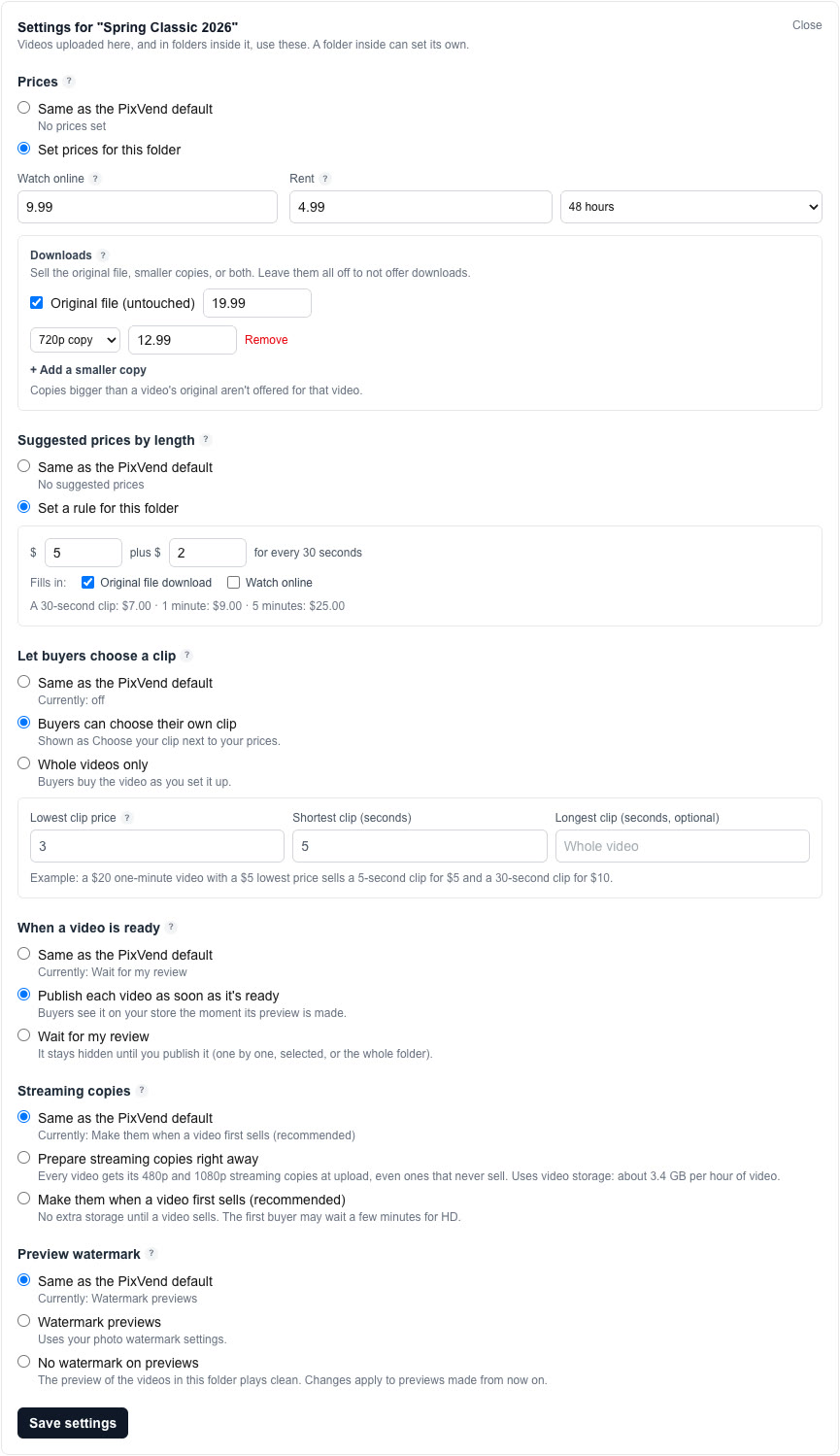
YouPress Folder settings on the folder bar. Every video in the folder follows these, including ones you upload later. Video defaults sets the same things for your whole store.
Watch online and rentWatch online lets the buyer stream the full video whenever they like from their private link. Rent is cheaper, time-limited viewing: the clock starts the first time they press play. Leave a price empty to not offer it.
DownloadsSell your original file, exactly as uploaded and downloaded instantly, and smaller copies (4K, 1080p, 720p) at their own prices. Copies are made the first time someone buys one, usually in a few minutes, so they use no storage until they sell.
Suggested prices by lengthA starting price plus an amount for every started 30 seconds, for example $5 plus $2: a 30-second clip suggests $7, a minute $9. Each video shows its suggestion with Use suggested, and Apply suggested prices to this folder sets them all.
Let buyers choose a clipBuyers drag a start and end on a full-length preview and pay for just that part: your full price shared out by length, never below the lowest clip price you set. Their part is cut from your original after they pay.
When a video is readyPublish each video as soon as its preview is made (good for events you sell as they come in), or keep new videos hidden until you review them.
Streaming copiesMake them when a video first sells (recommended): unsold videos use only their original. Prepare streaming copies right away makes the 480p and 1080p copies at upload for every video, even ones that never sell, which uses about 3.4 GB of video storage per hour of video.
Preview watermarkPreviews carry your photo watermark unless you turn it off here.
A video can have its own prices. Set prices on a single video and it keeps them when the folder changes. Use folder prices on that video makes it follow the folder again.
Next: step 4
Step 4 of 7
Fine-tune one video
YouPress Edit on any video.
PricesShows the folder prices it follows and its suggested price. Use suggested or Set prices for this video gives it its own.
Choose your clipFollow the folder, or turn it on or off for just this video.
Preview starts atBuyers see 30 free seconds from here, with your watermark. Pick the best moment, not the warm-up.
CaptionsAdd a .vtt or .srt file per language. Buyers turn them on in the player, they show on the free preview too, and trims and clips get the right part automatically.
Save, publish, sendSave your changes, publish or unpublish it, send it to a client, or open it on your store.
Next: step 5
Step 5 of 7
Trim or split
YouPress Trim or split. Your upload is always kept, so you can go back to the whole recording.
TrimDrag the handles on the filmstrip to cut dead time off the start and end, then press Save trim. Play the part checks it first. On a keyboard, I and O mark the start and end, and the arrow keys step one frame.
Split into clipsMark a part and press Add clip, as many times as you like, then Make clips. Each clip becomes its own video in the folder, priced by your folder settings (or your suggested prices by length). Previous video and Next video step through the folder.
Next: step 6
Step 6 of 7
Send a video to a client
YouFor a team, a parent or a coach who should get a video directly. Press Send to a client on a video, or on a folder to send everything in it.
Who and whatTheir email, Watch online or Watch and download the original, and when the link ends. Works even if the video isn't published on your store.
Free or pricedLeave the price empty to send it free. With a price (single videos), they pay through your store's checkout before it opens. Paid videos are theirs to keep after the link ends.
Private by designOnly the person you sent it to can open it: they type their email and enter a code emailed to them.
Next: step 7
Step 7 of 7
What your buyers see
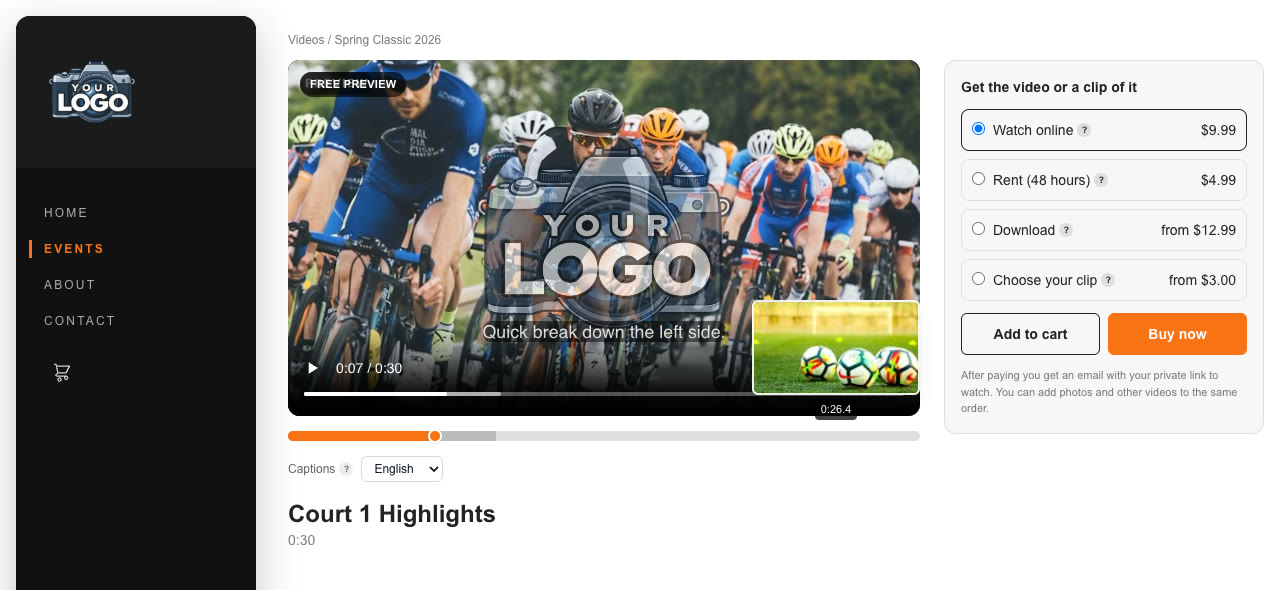
BuyersYour videos get their own pages on your store, at your store's address plus /videos.
Videos by folderEach folder shows its videos with their length and starting price.
A free preview30 seconds, watermarked, with captions they can turn on and a thumbnail as they scrub along the timeline. The buying options sit beside it.
Choose your clipThey drag the handles on the full-length preview, pick download or watch online, and the price follows the length.
One cart for everythingVideos and clips go in the same cart as your photos and prints, and check out in one payment.
- Right after payingAn email with their private link to watch or download. Original files download instantly.
- HD on its wayIf it's the video's first sale, they watch your original while the HD streaming copies are made, usually a few minutes, and get an email when HD is ready.
- Clips and copiesA chosen clip or a smaller download copy is cut or made right after payment, and emailed when it's ready.
Good to know
largest single file. Any length or resolution.
free preview per video, watermarked, from the moment you choose.
HD streaming copies, switching automatically with the buyer's connection.
of video storage included; $20 a month for each extra TB.
- What counts toward my video storage?
- Your original files plus everything PixVend makes from them: previews, streaming copies, download copies, editing copies for the trimmer and captions. Streaming and download copies are made at the first sale unless you prepare them right away, so unsold videos mostly use only their original.
- Do I pay a fee on video sales?
- Yes, your plan's video rate (7% on Pro and the Video plan, 6% on Business, 5% on Enterprise) plus the same payment processing as photo sales, taken automatically from each sale. You're never billed for it separately.
- Can buyers share their link?
- Each purchase has its own private link tied to the buyer's order. The player shows a Licensed to mark with the buyer's email, and rentals end when their time is up.
- My clients ask for just their kid's moments. What should I use?
- Turn on Let buyers choose a clip with a lowest price. Parents cut the part they want from the full game, and you don't have to edit anything.
- Can I sell videos and photos from the same event?
- Yes. They sit on separate pages (your galleries and your Videos), and buyers can put both in one cart. The Video plan is the exception: it sells video only.
- Can my team's photographers send me videos?
- Yes, through your Upload Link. Their videos arrive as a draft folder, and you review and publish them like photos.