Email your customers
Build an email from a template with your own photos, pick who gets it, and see who opened, clicked and bought. With Automation, journeys like a welcome series or an abandoned cart reminder send themselves.
Email Marketing or Email Marketing + Automation, priced by list size, on every plan. 7 steps. Last checked October 7, 2026.
Watch the whole process (2:11, captions on)
 1You
1YouPick a plan that fits your list
 3You
3YouBring in your contacts
 4You
4YouBuild an email with your photos
 5You
5YouChoose who gets it and send
 6You
6YouSee opens, clicks and sales
Step 1 of 7
Pick your plan
You, onceFind Email Marketing under Apps > Plugins. There are two versions, and both are priced by the size of your list.
The email editor, templates, audiences, test sends, scheduling, subject line tests and the full report for every email.
Everything in Email Marketing plus journeys: welcome series, abandoned cart, win back, new photos and deadline countdowns that send themselves.
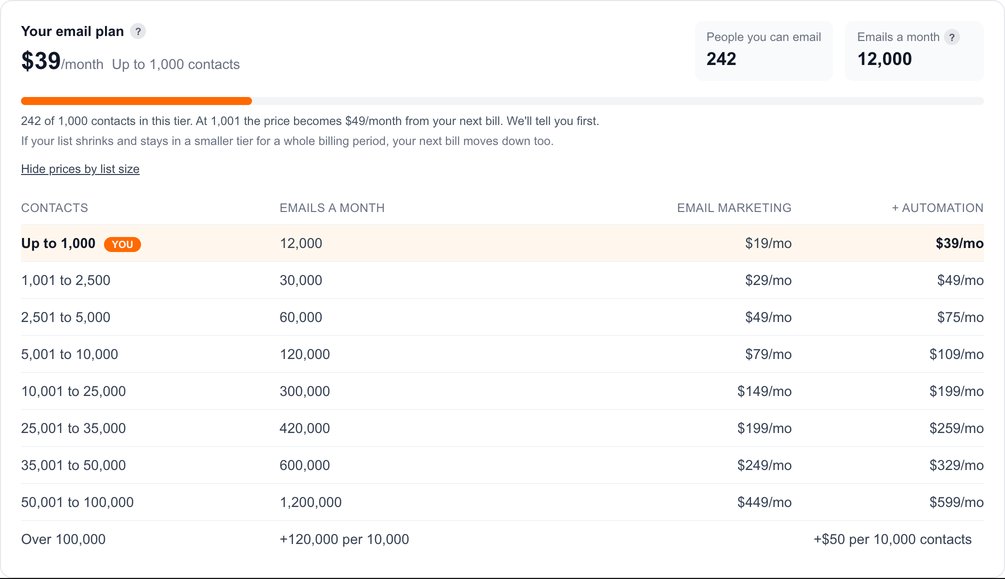
Your price follows your listThe plugin page shows your tier, how many people you can email and how many emails you can send a month. The table shows every tier: $19 or $39 a month up to 1,000 contacts, up to $449 or $599 for 100,000.
Bigger than 100,000Each extra 10,000 contacts, or part of 10,000, adds $50 a month on either version.
Moving between tiersWhen your list grows into the next tier, you get a heads-up at 80% and 100% first, and the new price starts on your next bill. If your list shrinks and stays smaller for a whole billing period, the price moves down too.
Your monthly allowanceEach tier sends up to 12 emails per contact a month (12,000 on the 1,000 tier). The Campaigns page shows how many are left.
Past the allowanceExtra emails are paid from your PixVend wallet: $0.50 per 1,000 on Free and Starter, $0.40 on Pro, $0.30 on Business and Enterprise. Turn on Auto-recharge so sending never pauses, or add funds when you need them.
Who counts as a contact? Only people who agreed to get your email: Email Capture signups, buyers who ticked the box at checkout, people you imported with their consent, and Find My Photos and notify-me subscribers. Anyone who unsubscribed or whose address bounced doesn't count, and doesn't get your emails.
Next: step 2
Step 2 of 7
Set it up once
You, onceA few settings that every email uses.
Your mailing addressSettings > Email Settings. US law (CAN-SPAM) requires a postal address in every marketing email, so campaigns can't go out until it's filled in. It's added to the footer for you, with the unsubscribe link.
The checkout boxWhen you set up the plugin you're asked once whether to add an Email me news and offers box at checkout. Say yes to grow your list from every sale. You can change it any time on the plugin page.
What buyers seeAn unticked box under the email field. Buyers who tick it join your list; buyers who don't still get their order emails, just not your campaigns.
Send from your own domain (optional)On Email Settings, add your domain and the records it shows you at your domain host. Once they check out, your campaigns come from your own address, which helps them land in the inbox.
A signup form on your storeThe Email Capture plugin adds a signup form, inline or as a popup. Turn on double opt-in to have new signups confirm by email first: they show as pending until they do, and only confirmed people get campaigns.
Next: step 3
Step 3 of 7
Your contacts and audiences
YouPress Contacts & audiences on the Campaigns page.
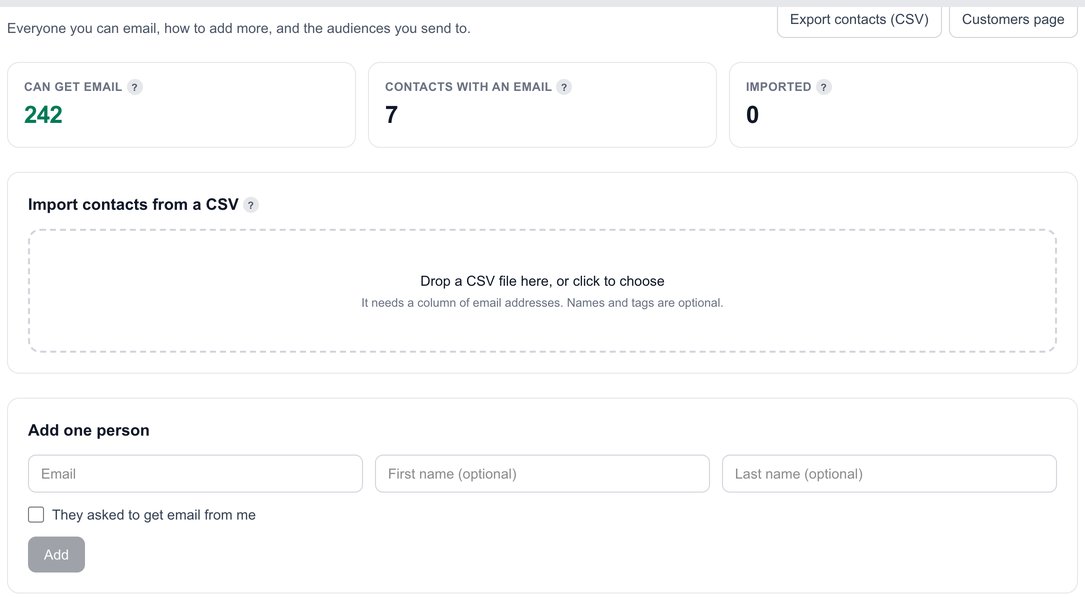
Who you can emailCan get email is the number your plan is priced on. Export contacts downloads everyone as a CSV.
Import a listDrop a CSV with a column of email addresses (names and tags are optional), match the columns, and confirm the people agreed to hear from you. Duplicates and anyone who unsubscribed are skipped.
Add one personType their email and tick They asked to get email from me.
Saved audiencesCombine rules such as bought from a gallery or event (and everything inside it), bought or didn't buy in the last N days, spent over an amount, has a tag, or alert subscribers. The count updates as you build it. Save it to pick it again for any email.
Next: step 4
Step 4 of 7
Build an email
YouPress New email on the Campaigns page.
Start from a templatePhotos are live, gallery closing soon, a sale, a new event, a newsletter, seasonal, mini sessions, thank you and video release, or a blank email. Each one already uses your logo and accent color. Sample pictures must be swapped for your own before it can send.
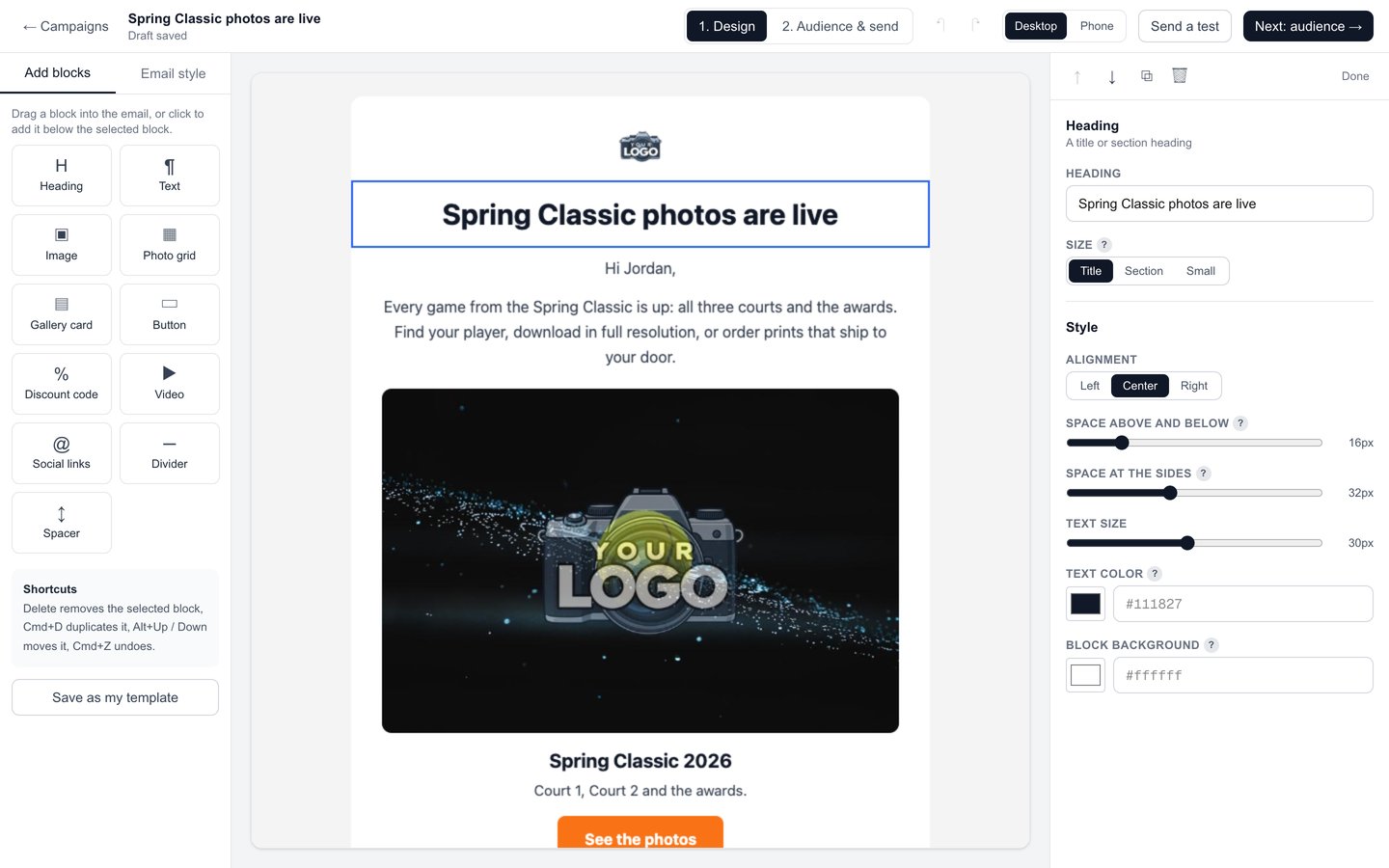
BlocksDrag a block into the email, or click it to add it below the selected one: heading, text, image, photo grid, gallery card, button, discount code, video, social links, divider and spacer. Email style sets colors, font and width for the whole email.
Your emailExactly what people will get. Click any block to edit it; drag to move it. Shortcuts: Delete removes, Cmd+D duplicates, Alt+arrows move, Cmd+Z undoes. It saves as you go.
SettingsThe settings for the block you clicked: its text, alignment, spacing, size and colors.
Desktop and PhoneSee how it looks on a computer or a phone.
Send a testSend it to up to 5 addresses to see it in a real inbox. Personal details like the first name use sample values.
Your own gallery photosA photo grid or gallery card uses photos straight from your galleries, with your watermark. Pick a gallery, choose up to 12 photos, and choose square, wide or original shapes. Tapping a photo opens the gallery on your store.
Personal touchesWrite {{first_name|there}} in any text to say Hi Jordan, or Hi there when you don't have a name. A discount code block shows a code from Discount Codes with its end date.
Check the phone viewMost people read email on a phone. Photo grids stack and text wraps on their own.
Next: step 5
Step 5 of 7
Choose who gets it and send
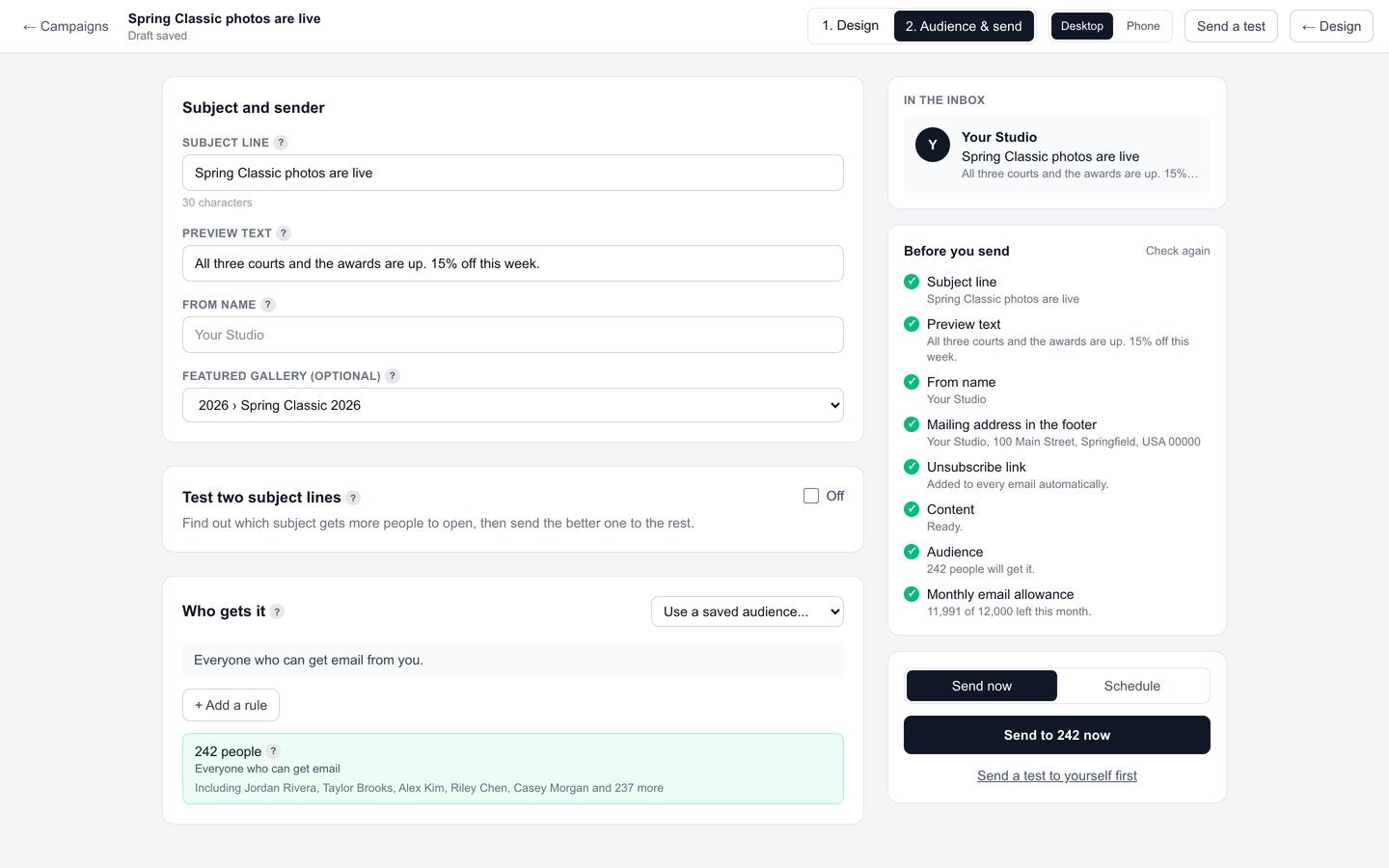
YouPress Next: audience at the top of the editor.
Subject and senderThe subject line, the preview text people see next to it in their inbox, the from name, and an optional featured gallery that {{gallery_link}} buttons point to.
Test two subject linesOptional (step c below).
Who gets itEveryone who can get email, a saved audience, or rules you add right here. The count shows how many will get it.
Before you sendEvery check must be green: subject, preview text, from name, mailing address, unsubscribe link, content, audience and your monthly allowance.
Send now or ScheduleSend to everyone now, or schedule it for a date and time in your time zone. A scheduled email can be cancelled until it goes.
Pick an audienceHere, only people who bought from Spring Classic 2026. Name it and press Save audience to use it again.
A subject line testWrite a second subject. A share of your audience (10 to 50%) is split between the two, and after the wait you choose (1 to 48 hours) the one with more opens or clicks goes to everyone else, automatically. It needs at least 20 people.
Fix anything that isn't greenEach check says what's missing, such as the mailing address or a sample picture still in the email. Check again re-runs them.
Schedule itPick the date and time, then press Schedule.
Next: step 6
Step 6 of 7
See how it did
YouPress Report on a sent email in the Campaigns list. It updates by itself for the first days.
The last 30 daysThe top of the Campaigns page adds up every email you sent in the last 30 days: emails sent, open rate, click rate and the sales they brought in.
Each emailEvery sent email shows its open rate, click rate, orders and sales. Duplicate starts a new email from it.
The numbersDelivered, opened, clicked, sales, unsubscribes, bounces and spam reports. Opens are approximate: some mail apps, like Apple Mail, open every email for privacy, so clicks are the surer sign.
The subject line testBoth subjects side by side, and which one won.
Over timeOpens and clicks by hour for the first three days, then by day.
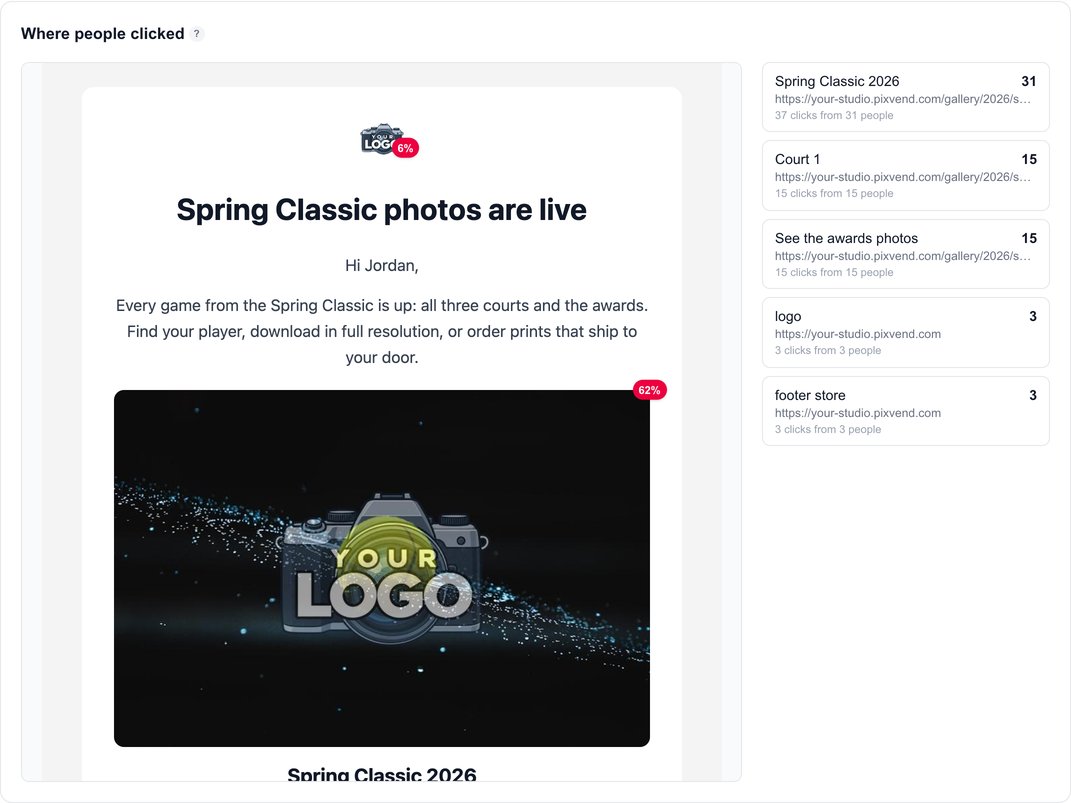
The click mapEach link in the email shows its share of clicks, with the full list beside it.
Who did whatFilter by opened, clicked, bought, unsubscribed or bounced, search by email, and download the list as a CSV.
How sales are counted When someone clicks a link to your store and buys within 7 days, the order is credited to that email, even if they check out with a different address. Each order counts once, and refunded orders come back out.
Next: step 7
Step 7 of 7
Journeys that send themselves
You, onceWith Email Marketing + Automation, press Journeys on the Campaigns page.
Start from a recipeWelcome series, abandoned cart, after a purchase, win back past buyers, gallery deadline countdown and new photos for past buyers. Every email is already written in your colors; change anything you like.
Trigger and stepsClick the trigger to choose what starts it: joins your list, first or any purchase, leaves a cart, new photos go live, a booking, a tag, no purchase in N days, or a gallery deadline. Use + to add an email, a text, a wait, an if / else split or a tag.
Turn it onWhen Ready to turn on is all green, press Turn on. Edits to a live journey apply to people who haven't reached that step yet. Pause it any time.
Your journeysEach one shows whether it's on, how many people are in it, emails sent, click rate and sales.
The journey reportHow many started and finished, and each step's sends, opens, clicks and sales, with a link to each email's own report.
Who journeys email Only people who agreed to hear from you, and anyone who unsubscribes leaves the journey. One exception: abandoned cart reminders go to everyone who started checkout, because they're about their own cart, so keep those emails about the cart. Texts go only to people who agreed to texts, never between 9 PM and 8 AM.
Simple automationsOne-email automations such as a review request, photos are live and a gallery deadline reminder, switched on or off on the plugin page. When a live journey handles the same moment, the simple one pauses so nobody gets two emails. Turn into a journey copies it into the builder.
Good to know
a month for Email Marketing, or $39 with journeys, up to 1,000 contacts.
emails a month at your tier, then $0.30 to $0.50 per 1,000 from your wallet.
after a click, a purchase on your store is credited to the email.
is the smallest audience for a subject line test.
- If a bill isn't paidYour plugins pause, so no campaigns, journeys or texts go out until it's paid. On a paid plan your store keeps selling but payouts are held, and after 30 days unpaid the store goes offline. On the Free plan only the plugins pause.
- When it's paidEverything comes back on at once. Scheduled emails more than a day late go back to drafts so nothing goes out stale.
- Can I email everyone who ever bought from me?
- Only people who agreed to marketing email. Turn on the checkout box and Email Capture so buyers can join, and import past contacts only if they agreed to hear from you. That keeps you within anti-spam law and out of spam folders.
- Where do the photos in my emails come from?
- Your own galleries, with your watermark, through the photo grid, gallery card and image blocks. You can also upload an image.
- Can I reuse a design?
- Yes. Save as my template in the editor keeps it for new emails, and Duplicate in the campaign list copies a past email.
- What happens when someone unsubscribes?
- Every email has an unsubscribe link and a one-click unsubscribe for mail apps. They stop getting your campaigns and journeys right away and no longer count toward your plan.
- Does my price change by itself?
- Only when your list moves between tiers, and you're told before it does. The new price starts on your next bill.
- Can I send texts too?
- With the Texting plugin set up, journeys can include text steps for people who agreed to texts, and you can send text campaigns from the Campaigns page.