Know your customers
You never type customers in. The moment someone orders, books a session, joins your email list or asks to hear about a gallery, they appear here, matched by email and phone so each person shows up once.
Included on every plan. 3 steps. Last checked October 6, 2026.
Step 1 of 3
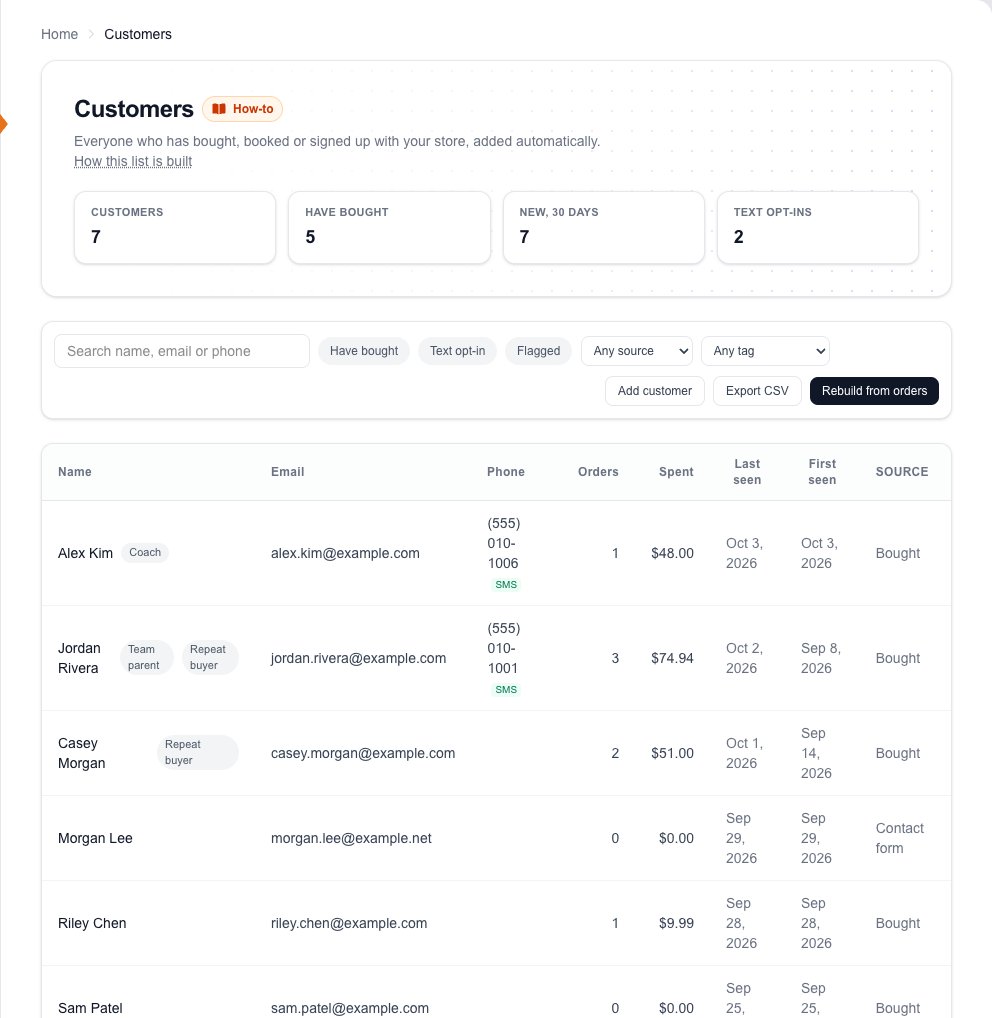
See everyone in one list
YouSales, then Customers.
Your numbersEveryone on the list, how many have bought, who is new this month, and how many agreed to texts.
Quick filtersHave bought, Text opt-in, or the people you flagged. Search finds a name, email or phone.
Source and tagShow only people who came from orders, bookings, your email list and so on, or only one of your tags.
TagsYour own labels, such as Coach or Team parent. Add them on the person's page.
Where they came fromHow they first reached you: an order, a booking, a contact form, an email signup.
Export CSVYour whole customer list as a spreadsheet, for your own records or another tool.
Rebuild from ordersAdds anyone missing from orders, bookings and signups you already had. Safe to run any time; it never removes or overwrites your edits.
Next: step 2
Step 2 of 3
Open a customer
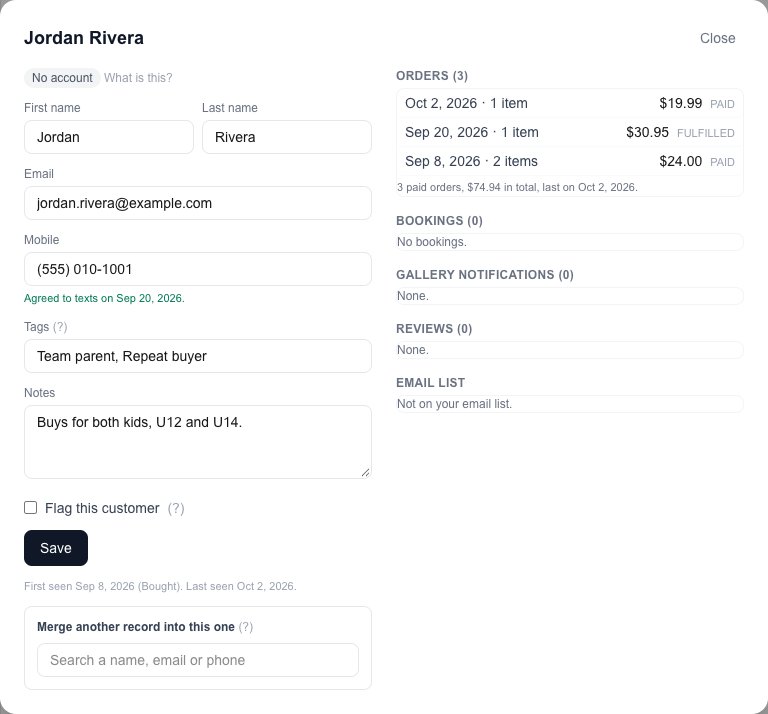
YouClick a name. Everything they've done with your store is on one page.
Contact detailsFix a name, email or mobile number, then Save.
ConsentWhen they agreed to texts or joined your email list. Only people who agreed get your marketing.
TagsSeparate tags with commas. Each one becomes a filter on the list.
NotesPrivate to you and your team: sizes, kids' names, anything worth remembering.
FlagA red dot on the list for people to handle with care, such as a chargeback or a no-show. Nothing changes for them.
Their historyOrders with totals, bookings, galleries they asked to hear about, reviews, and whether they're on your email list.
MergeThe same person twice, such as a walk-in phone number and an order email? Search for the other record and everything moves to this one.
Next: step 3
Step 3 of 3
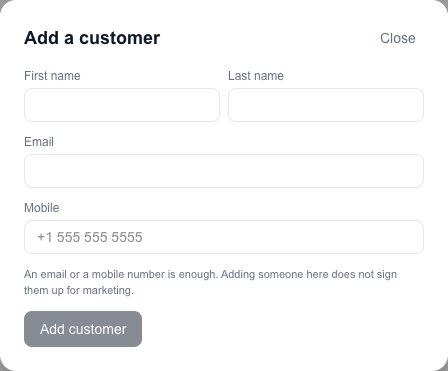
Add someone yourself
YouAdd customer, above the list. For people you met in person or who called you.
Good to know
- Why does someone show 0 orders?
- They reached you another way (a booking, a signup, the contact form), or their only order was refunded. Orders and Spent count paid orders only.
- Does adding a customer email them?
- No. Nobody is emailed or texted because they're on this list. Marketing only goes to people who agreed to it.
- What does No account mean?
- Buyers can make a free account on your store, signing in with a code instead of a password, to see all their orders and download again. No account means they haven't yet.
- I imported old sales. Are those buyers here?
- Yes. Imported sales history adds its buyers too, marked Imported in the source column.