
Connect your own domain
Your store can live at your own domain, like yourstudio.com. You type it in, add a few records where you bought the domain, and PixVend sets up the secure (https) certificate for you. Your email isn't touched.
Included on every paid plan. 3 steps. Last checked October 9, 2026.
Watch the whole process (1:10, captions on)
Step 1 of 3
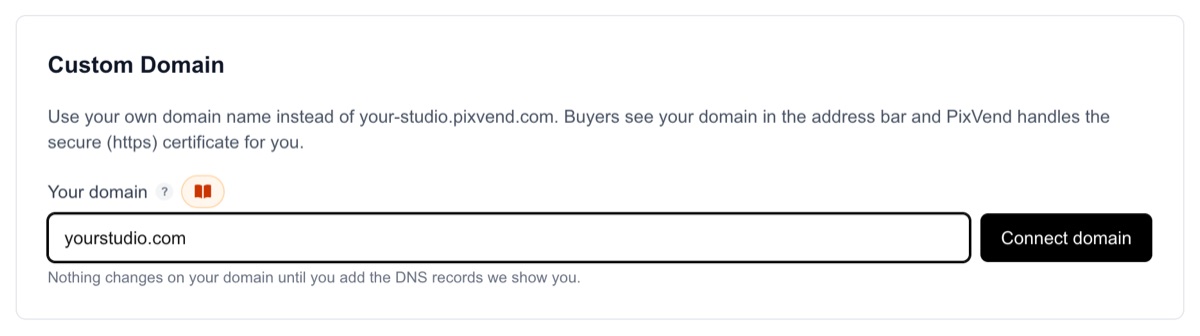
Type your domain
YouSettings, then Store Settings. Custom Domain is at the bottom of the first tab.
Your domainThe domain you bought, without https:// or www, for example yourstudio.com. PixVend connects both yourstudio.com and www.yourstudio.com.
Connect domainNothing changes on your domain yet. PixVend only shows you the records to add.
Next: step 2
Step 2 of 3
Add the records where you bought the domain
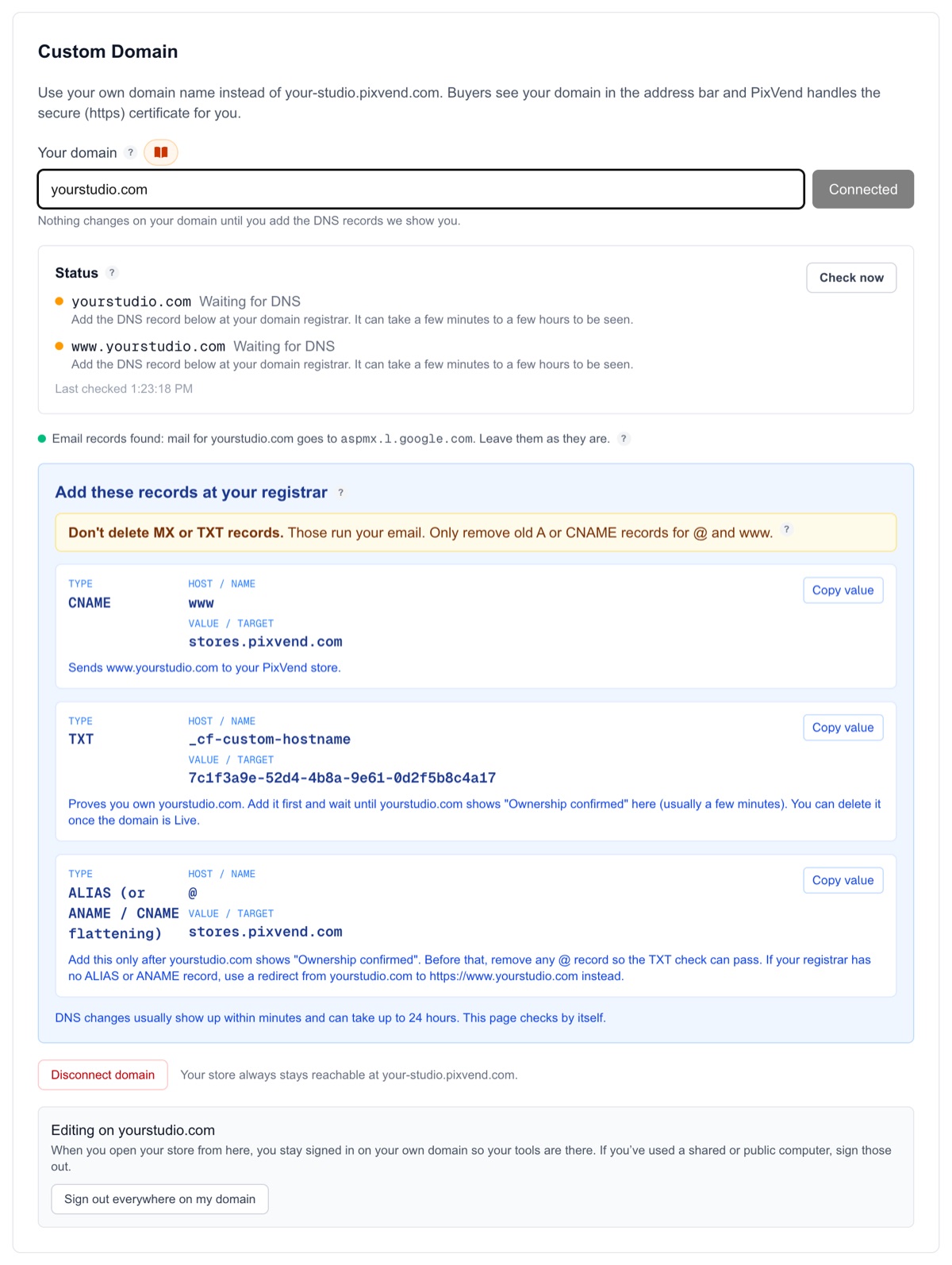
YouLog in to the company you bought the domain from (your registrar) and open its DNS settings. Then add the records PixVend shows you, in this order.
CNAME for wwwName www, value stores.pixvend.com. This sends www.yourstudio.com to your store.
TXT for ownershipAdd it first. It proves the domain is yours. When yourstudio.com shows Ownership confirmed (usually a few minutes), you can move on. You can delete this one once everything is Live.
ALIAS for @Name @ (the domain itself), value stores.pixvend.com. Add it after Ownership confirmed. The record type is called ALIAS, ANAME or CNAME flattening depending on the registrar.
Don't delete MX or TXT records Those run your email (MX says where your mail goes; TXT records like SPF, DKIM, DMARC and Google or Microsoft verification keep it out of spam). Only remove old A or CNAME records for @ and www, such as a parking page or an old website, because they clash with the new ones.
Domain List, Manage next to your domain, then the Advanced DNS tab. Under Host Records press Add New Record. Namecheap has an ALIAS record type for @. Delete the parking page records (a CNAME for www and a URL Redirect for @) first.
My Products, then DNS next to your domain, then Add New Record. GoDaddy has no ALIAS record for @, so instead use Forwarding (on the same page) to send yourstudio.com to https://www.yourstudio.com as a permanent (301) forward. Delete the Parked A record for @ first.
Pick the domain, then DNS, then Records, then Add record. For @ add a CNAME to stores.pixvend.com (Cloudflare flattens it for you). Set the Proxy status of both records to DNS only, the grey cloud.
Domains, pick the domain, then DNS, then DNS Settings. Under Custom records press Add record. If the domain was connected to a Squarespace site, remove the Squarespace Defaults first. If there's no ALIAS type, use Domain forwarding to send yourstudio.com to https://www.yourstudio.com.
If the Name already ends in your domain Most registrars add your domain to the Name for you. Type only the part PixVend shows (www, @ or _cf-custom-hostname), not www.yourstudio.com, or you'll end up with www.yourstudio.com.yourstudio.com.
Next: step 3
Step 3 of 3
Watch it go live
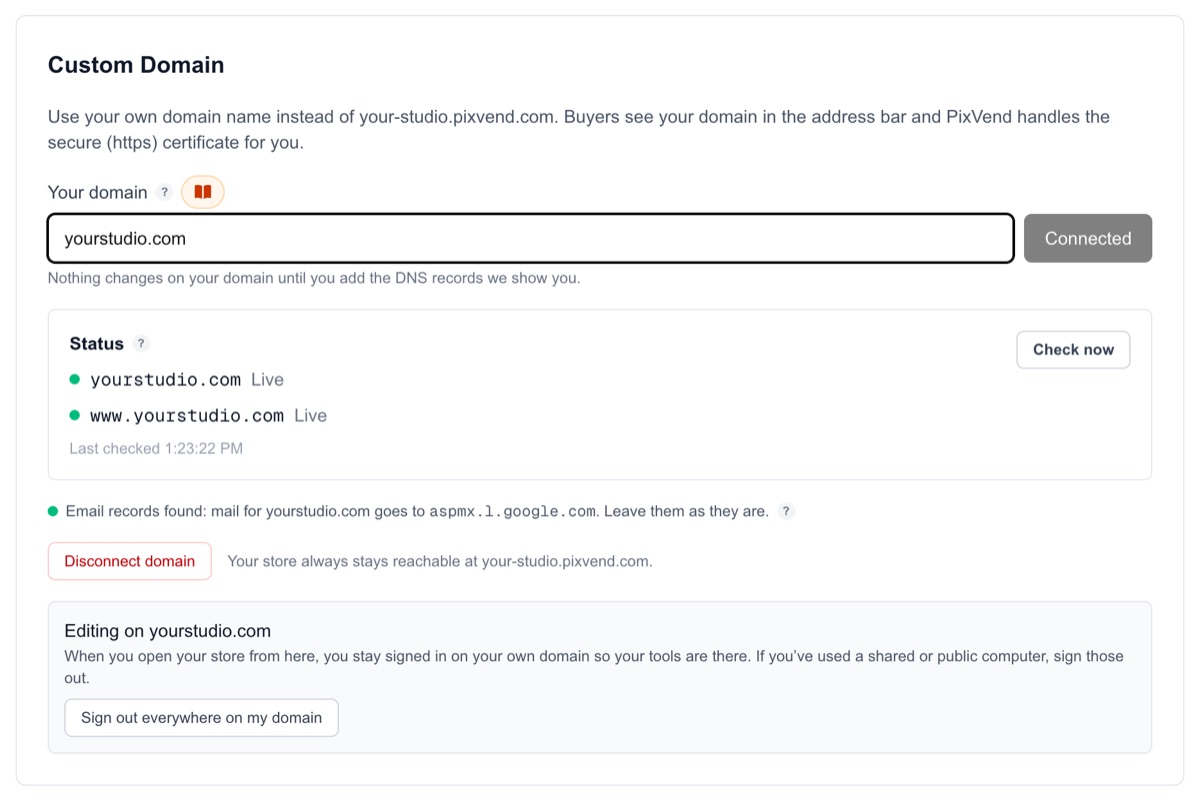
YouThe panel checks by itself every few minutes, or press Check now. Most domains are live within the hour; DNS can take up to 24 hours.
- Waiting for DNSPixVend can't see the record yet. Check it matches exactly, then give it time.
- Ownership confirmedThe TXT record worked. Now add the @ record.
- Issuing certificateYour DNS is right and the secure (https) certificate is being made, usually a few minutes.
- LiveYour store works at this address. Buyers see your domain in the address bar.
- ErrorThe record points somewhere else, often an old record still there. The panel says which one.
Keep your email working
Connecting your store never changes your email. The panel keeps an eye on it anyway.
When you connect, PixVend notes your domain's mail servers (its MX records). If they later disappear, usually because they were deleted with the old website records, the panel shows a red warning with the servers you had.
To fix it, add the MX records back at your registrar. Your email provider (Google Workspace, Microsoft 365 or your web host) lists the exact records.
Good to know
- Will my store still work at its pixvend.com address?
- Yes, always. Your domain is an extra address; links people already have keep working.
- What happens to my old website?
- Once the records are in, your domain shows your PixVend store instead. Other subdomains you use (like mail. or shop.) aren't touched.
- My registrar has no ALIAS or ANAME record.
- Add the www record, then forward yourstudio.com to https://www.yourstudio.com with your registrar's forwarding or redirect setting. Buyers typing either address land on your store.
- It's been hours and it still says Waiting for DNS.
- Look for an old A or CNAME record for the same name (www or @) and delete it, check the Name doesn't repeat your domain, and on Cloudflare make sure the cloud is grey (DNS only). Then press Check now.
- Do I need to change anything for email?
- No. Keep your MX and TXT records as they are. To send your marketing emails from your own address too, see Send email from your own domain.
- How do I disconnect?
- Press Disconnect domain in the same panel. Your store goes back to its pixvend.com address; remove the records at your registrar whenever you like.