
Collect photos from your team with one link
Your photographers open one link and send their photos, folders and all. You get an email, give the event a name and a price, and it goes live on your site.
Included on every paid plan. Last checked September 26, 2026.
 You
You1Send your link to your team
 Photographer
2They send photos or folders
 You
You3You get an email
 You
You4Name it, price it, publish
 Buyers
5It's live on your site
Set up your link
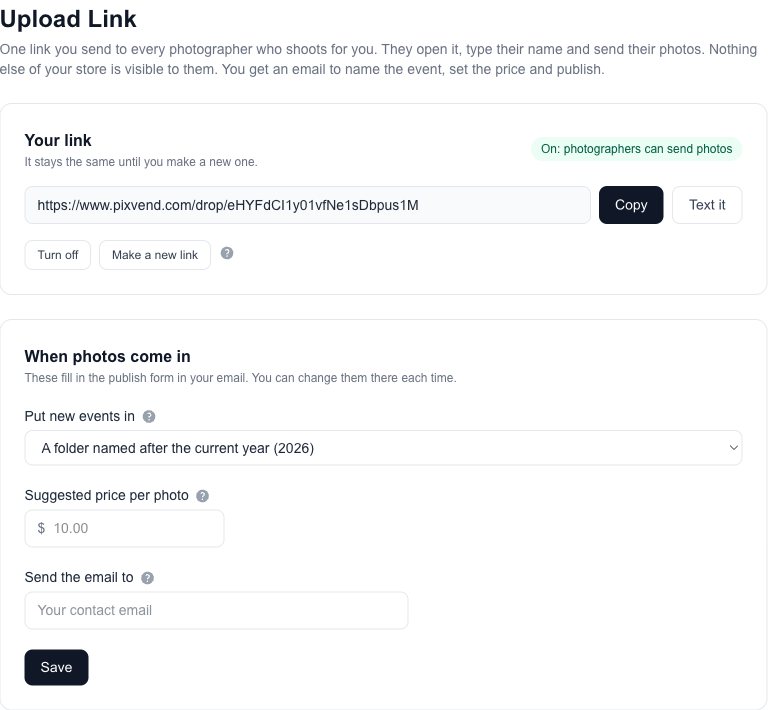
You, onceIn your dashboard, open Upload Link and press Create my upload link. This is what you'll see.
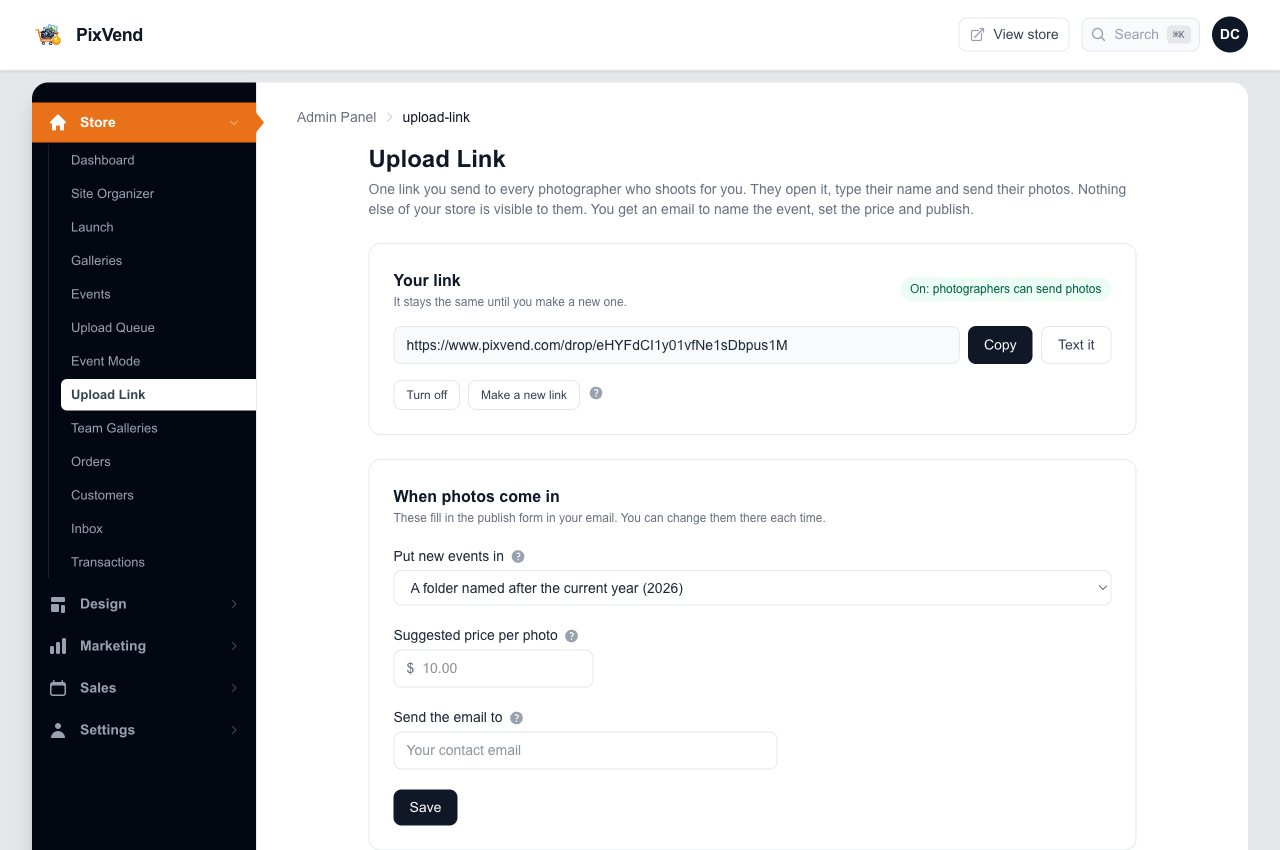
Upload Link in the menuIt sits under Galleries in the left menu.
Copy or Text itSend this link to every photographer. Everyone gets the same one, and it never changes on its own.
Turn off or make a new linkTurn it off between seasons. Make a new link if it reached someone who shouldn't have it.
When photos come inPick the folder new events go into, the price the form suggests, and who gets the email. Press Save.
What your photographers do
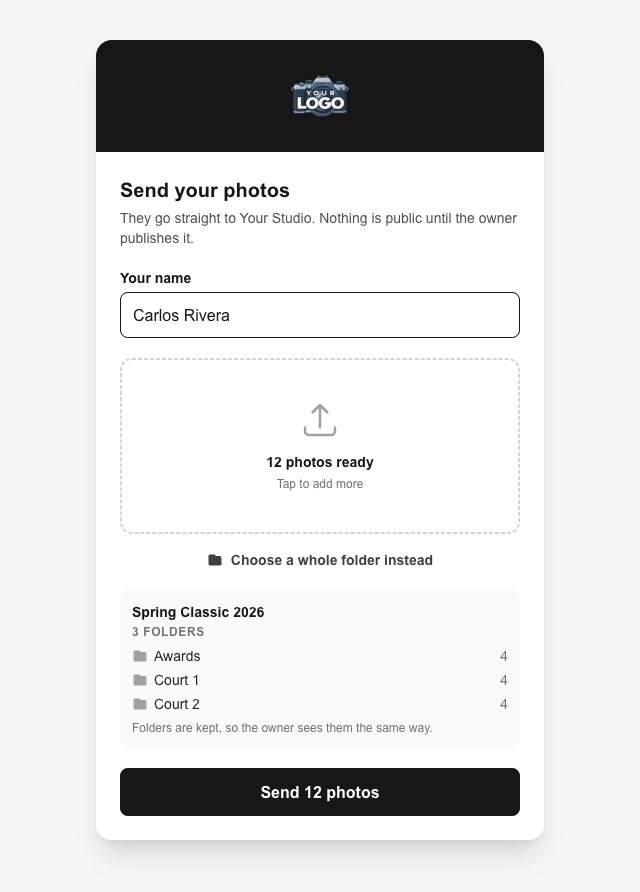
PhotographerNo account and no app. They open the link and see only your logo and an upload box.
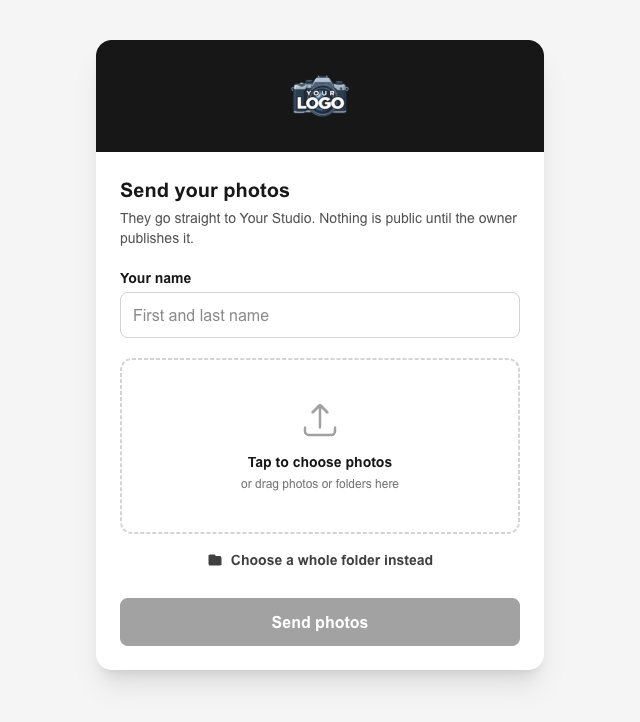
Open the linkYour logo, a name box and an upload box.
Add a name and the photosPick photos, or choose a whole folder on a computer. Folders inside it are kept.
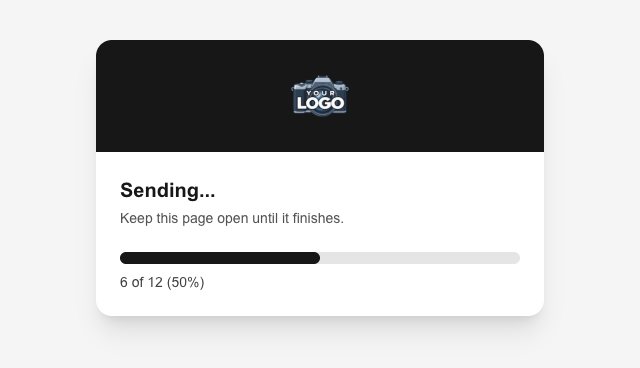
Press SendKeep the page open while the bar fills.
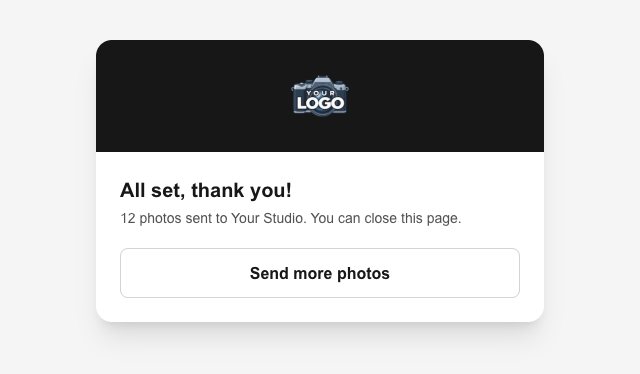
All setDone. Send more photos starts another batch.
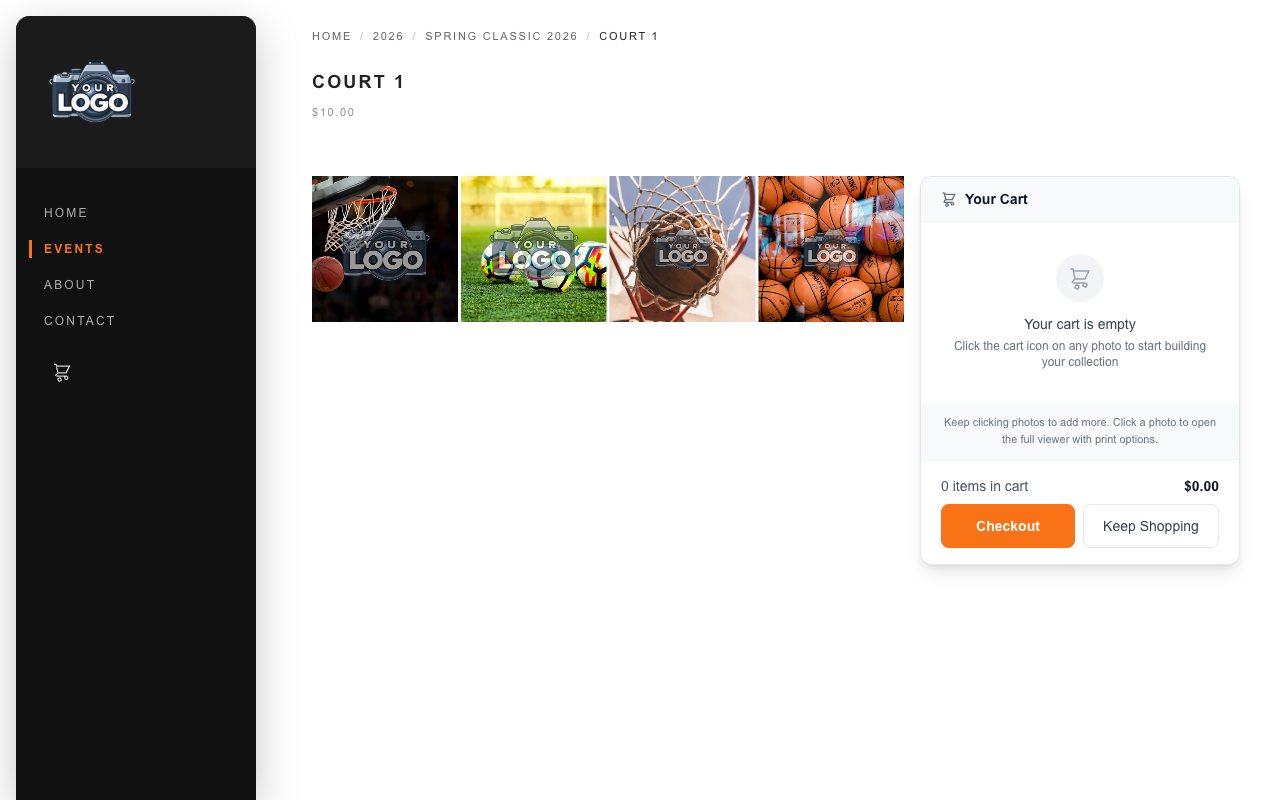
Folders become galleries. Send a folder called Spring Classic 2026 with Court 1, Court 2 and Awards inside, and you get an event called Spring Classic 2026 with a gallery for each court. Nothing is public until you publish it.
Name, price and publish
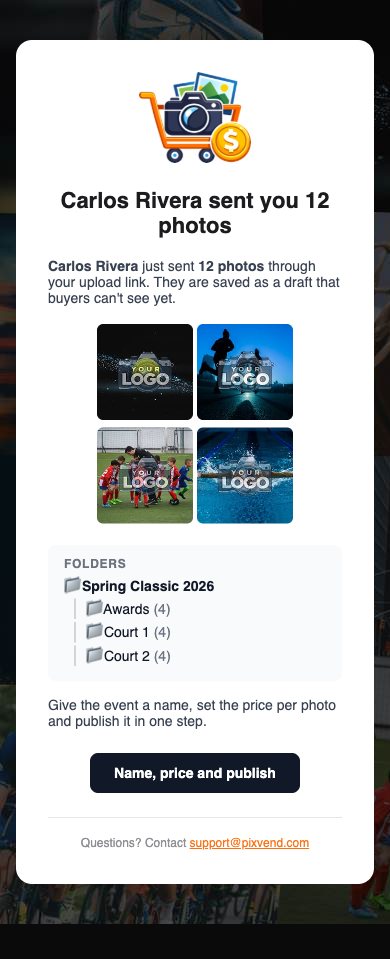
You, from your phoneThe email arrives as soon as the last photo lands. Its button opens a short form, no sign-in needed.
The folders they sentSubfolders are stepped in under the folder they sit in, each with its photo count. A few previews sit above.
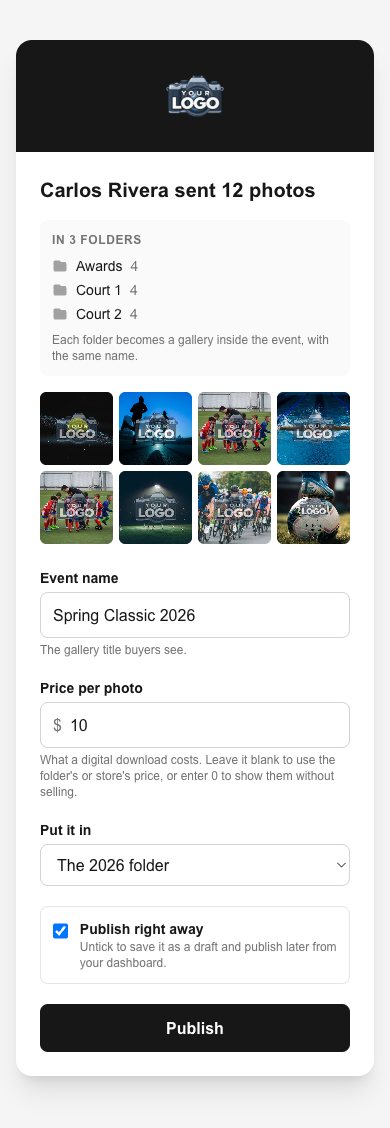
Name, price and publishOpens the form.
The foldersEach becomes a gallery inside the event, with the same name.
Event nameFilled in from the top folder's name. Change it if you like.
Price per photoStarts at your suggested price. Enter 0 to show the photos without selling them.
Put it inThe folder the event goes into, like this year's folder.
Publish right awayUntick it to save a draft and publish later.

PublishedYour watermark is already on every photo. View the gallery opens it on your site.
On your site
BuyersThe event lands at the top of its folder, with a gallery for every folder, priced and ready to buy.
Keeping track
YouEvery batch is listed under Photos sent to you on the Upload Link page, so you never depend on finding the email.
- Waiting for youAll photos arrived. Press Name and publish.
- Sending or stopped earlyStill uploading, or the page was closed early. You can still publish what arrived.
- Saved as draftSaved without publishing. Publish it from this list or from Galleries.
- PublishedLive on your store.
Anyone who opens the link sees that it isn't active. Turn on brings back the same link.
The old link stops working at once. Send the new one to your photographers.
Good to know
photos per batch. Send more photos starts another.
largest single photo. JPG, PNG, WebP, HEIC and TIFF.
per photo. The same photo sent twice to one folder is skipped.
Photos count toward your plan's storage like any upload.
- Do photographers need a PixVend account?
- No. The link only lets them send photos. They can't see or change anything else in your store.
- Can they send folders from a phone?
- Phones pick photos, not folders. On a computer they can choose a whole folder or drag it onto the page, and every folder inside is kept.
- Do the photos get my watermark?
- Yes. They go through the same processing as your own uploads: watermark, thumbnails and every size.
- Two photographers covered the same event. Can I combine them?
- Each person's batch arrives as its own draft. Publish them as separate galleries, such as Court 1 and Court 2, and pick the same event folder for both.