
Choose and customize your theme
A theme is the overall look of your store: the menu, the gallery cards, the photo viewer. Your galleries, prices and pages stay the same whichever theme you pick.
Free themes on every plan; premium themes are a one-time purchase. 4 steps. Last checked September 28, 2026.

Step 1 of 4
Open Themes
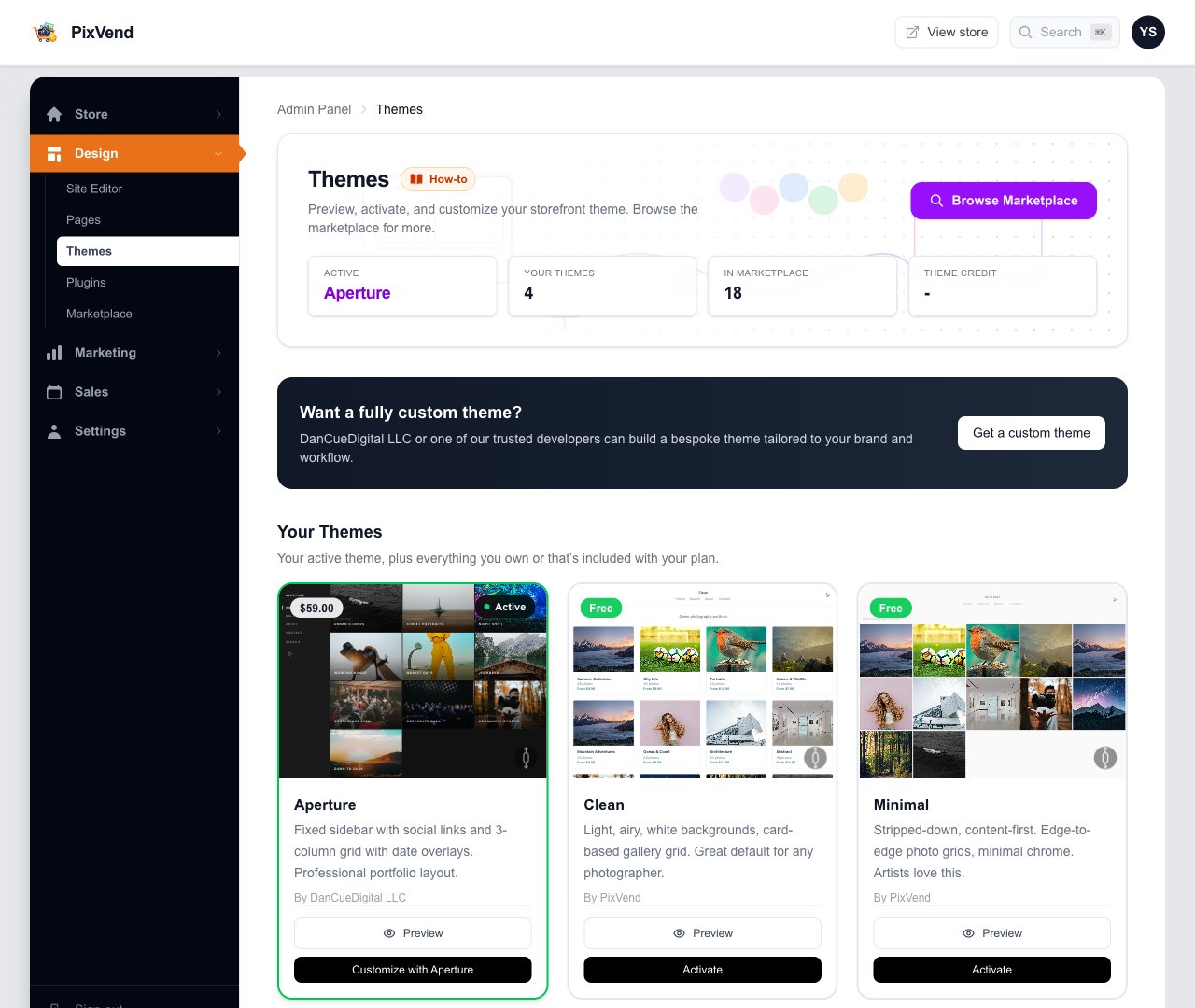
YouDesign, then Themes. The top shows your active theme; below are the themes you can use now.
ThemesUnder Design in the left menu.
ActiveThe theme buyers see right now. Its card has a green border and an Active badge.
Browse MarketplaceMore themes, free and paid, from PixVend and other designers.
PreviewEvery card has one. The thumbnail is a live, scrollable view of the theme.
Next: step 2
Step 2 of 4
Preview a theme
YouPreview opens the theme's demo store in a new tab, with sample galleries, so you can click around like a buyer before you change anything.
Next: step 3
Step 3 of 4
Activate it
YouPress Activate on the theme's card. Your store switches right away, so preview first.
ActivateMakes this your store's theme immediately. Galleries, prices, pages and orders are untouched.
Customize with your themeShows on the active theme's card instead of Activate. Opens the Site Editor (step 4).
Switching back is safe Each theme remembers its own design. Activate your old theme again and its colours, fonts and page layouts come back as you left them.
Next: step 4
Step 4 of 4
Make it yours
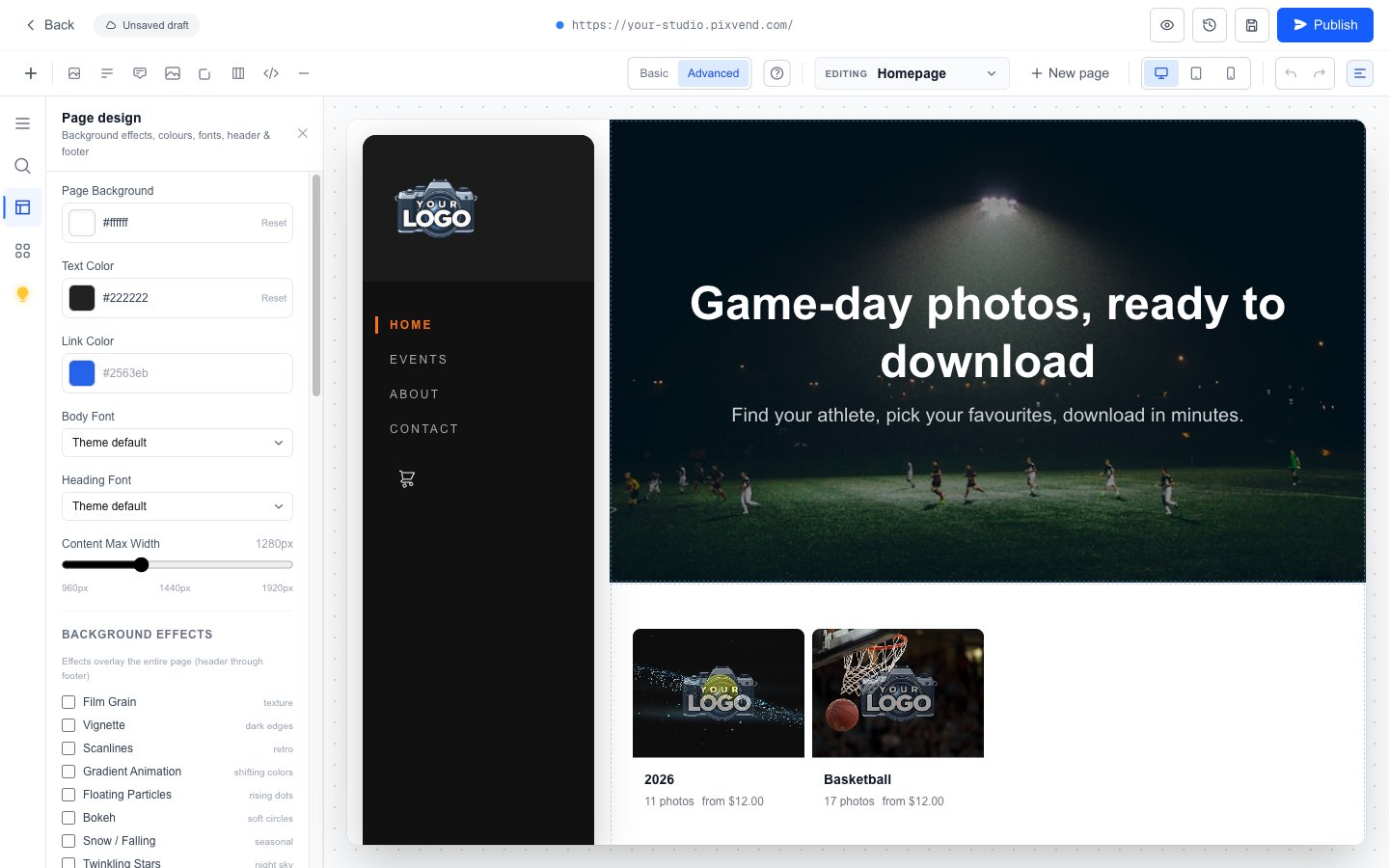
YouCustomize opens the Site Editor. The Page design button on its left edge holds the look of the page you're editing.
ColoursPage background, text and links. Reset goes back to the theme's own colour.
FontsPick a body and heading font, or keep the theme's.
Background effectsFilm grain, vignette, snow and more. Scroll further for your header (logo size, sticky menu, cart icon) and footer.
The rest of the page Headlines, photos and sections are in the Site Editor guide. Press Publish there when you're done; nothing changes for buyers before that.
Premium themes
YouThemes you don't own yet show a price and Purchase to use. Preview them first, the same way.
Good to know
- Will buyers see a half-finished theme?
- Activate is instant, so set a theme up and preview it before you activate. Colour and layout changes in the Site Editor only go live when you press Publish.
- Can I get a theme made just for my brand?
- Yes. Get a custom theme, on the Themes page, puts you in touch with a designer.
- Does changing theme change my web address?
- No. Your address, galleries and links all stay the same.