
Design your pages in the Site Editor
Build a page from sections, like stacking blocks: a big photo with your headline, then your galleries, then anything else you want to say. You see the real page as you work, and nothing changes for buyers until you press Publish.
Included on every plan. 5 steps. Last checked September 28, 2026.
 1You
1YouOpen the Site Editor
 2You
2YouAdd sections
- 3You
Edit what's in them
 4You
4YouSave and publish
 5Buyers
Your new page
Step 1 of 5
Open the Site Editor and pick a page
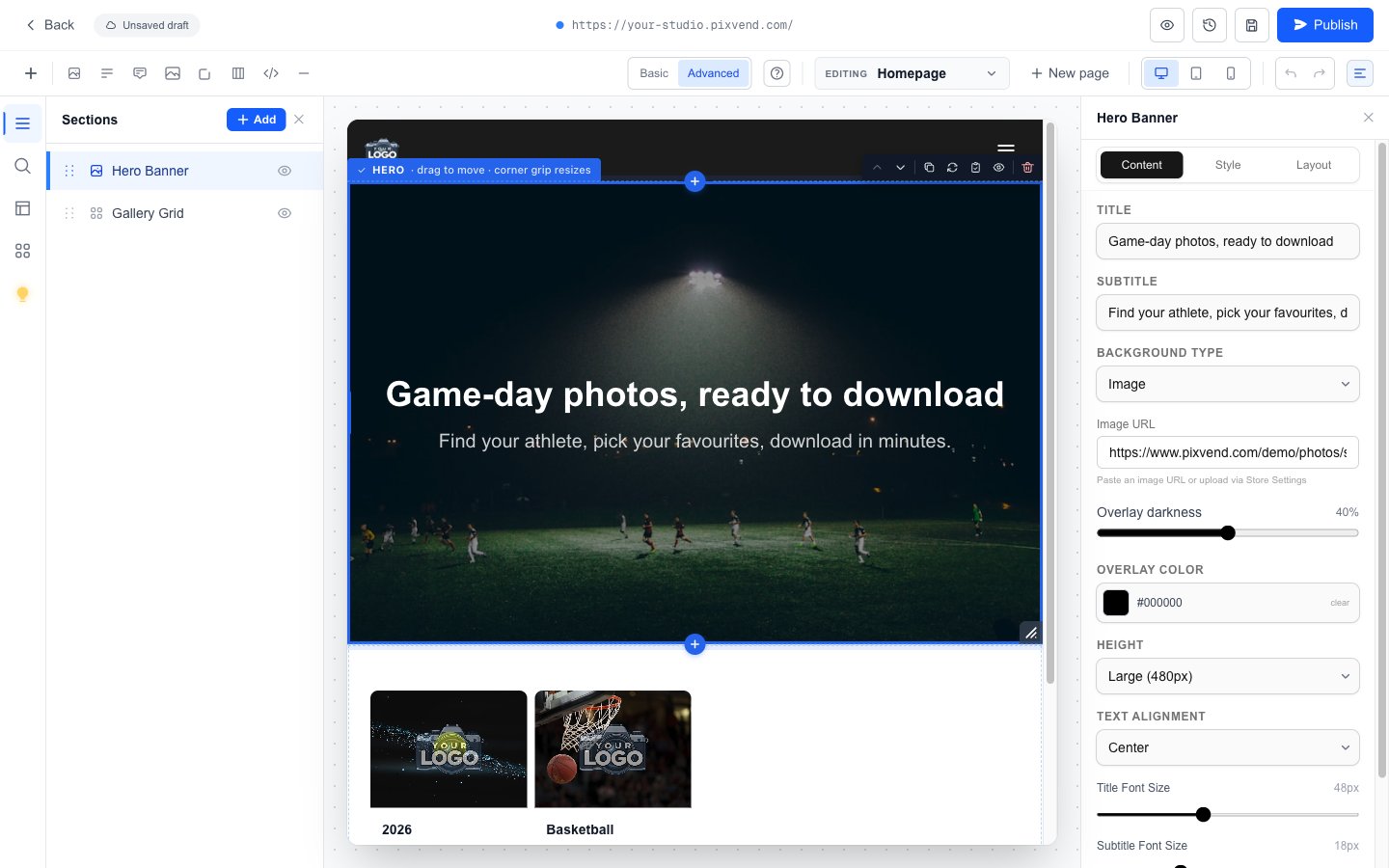
YouDesign, then Site Editor in the left menu. It opens on your homepage.
SectionsEvery section on this page, top to bottom. Click one to edit it, drag the dots to reorder, use the eye to hide it.
EditingSwitch between your homepage, the gallery page, the photo grid and your own pages. New page adds one.
The live previewClick any section in the preview to select it. Its toolbar moves it up or down, duplicates it, copies it to another page, hides or deletes it.
Its settingsEverything about the selected section: text, images, colours. Content, Style and Layout tabs along the top.
Next: step 2
Step 2 of 5
Add sections
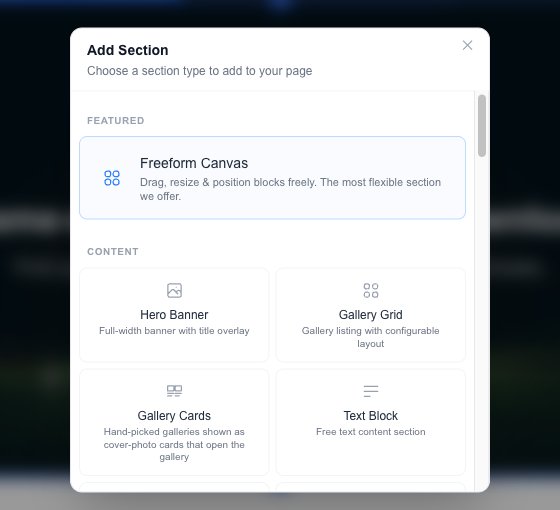
YouPress Add in the Sections list, or the blue + between two sections in the preview to put one exactly there.
Hero BannerA big photo or colour across the top with your headline. Most homepages start with one.
Gallery GridYour galleries as cover-photo cards with their price. New galleries show up in it by themselves.
Freeform CanvasPlace text, images and buttons anywhere. Scroll the window for more: FAQ, testimonials, countdowns, video, team, logos and others.
Next: step 3
Step 3 of 5
Edit what's in a section
YouSelect the section, then change it on the right. The preview updates as you type.
Type straight into Title and Subtitle. For a Hero, set Background type to Image and paste the photo's web address.
Style changes colours and fonts. Layout changes spacing and width. Drag the corner grip of a section to make it taller or shorter.
Check the page at each size with the screen buttons in the toolbar.
Undo and redo arrows in the toolbar, or Cmd+Z and Cmd+Shift+Z.
Next: step 4
Step 4 of 5
Save a version, then publish
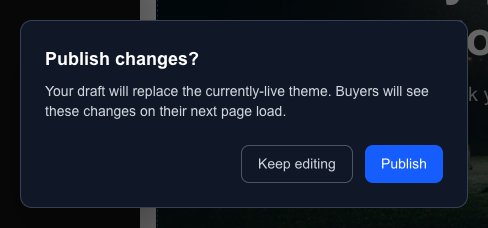
YouYour edits are kept as a draft while you work. Buyers keep seeing the current page until you publish.
Next: step 5
Step 5 of 5
Your new page
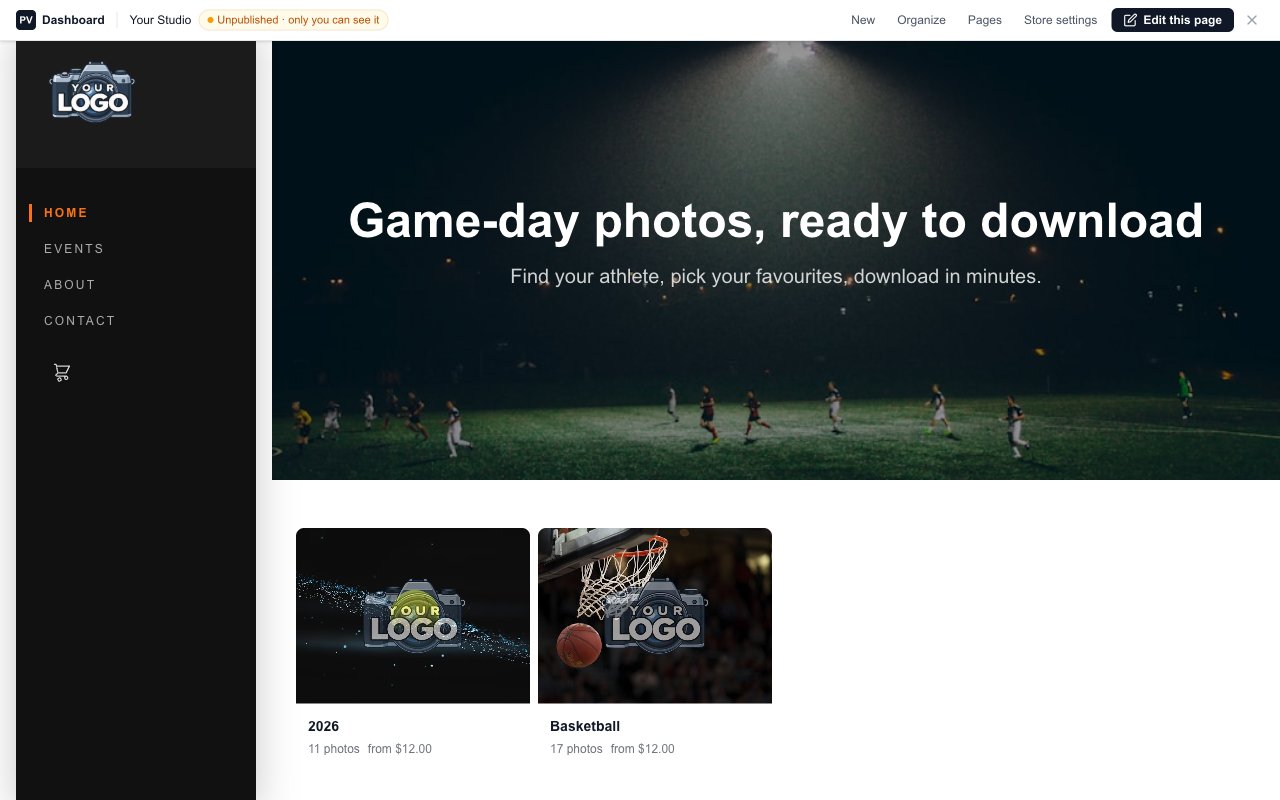
BuyersThe same sections, full width, on your store.
Edit this pageOnly you see this bar, when you're signed in. It jumps straight back into the Site Editor on this page.
Hero BannerThe headline and photo from step 3.
Gallery GridYour galleries, each opening its event.
Good to know
Basic shows just the essentials. Advanced adds device previews, undo, SEO and templates.
The ? button in the toolbar runs a hands-on tour of the editor.
The light bulb on the left suggests improvements for the page you're on.
Every page has its own sections. Copy a section to another page from its toolbar.
- My homepage looked fine before I added a section. Where did it go?
- Until a page has sections, your theme draws it. Once you add one, the page shows only your sections. Add a Gallery Grid to bring your galleries back.
- Can I undo a publish?
- Yes. Open the version history, revert to the version you want, and publish again.
- How do I change fonts and colours for the whole store?
- That's your theme: Design, then Themes.