
Organize your galleries into folders
Your store is a tree of folders and galleries, like the folders on your computer. The Site Organizer shows the whole tree, and whatever you arrange there is exactly what buyers click through.
Included on every plan. 5 steps. Last checked September 28, 2026.
 1You
1YouOpen the Site Organizer
 2You
2YouMake a folder
 3You
3YouMove galleries into it
 4You
4YouRename, cover, publish
 5Buyers
Buyers click through it
Step 1 of 5
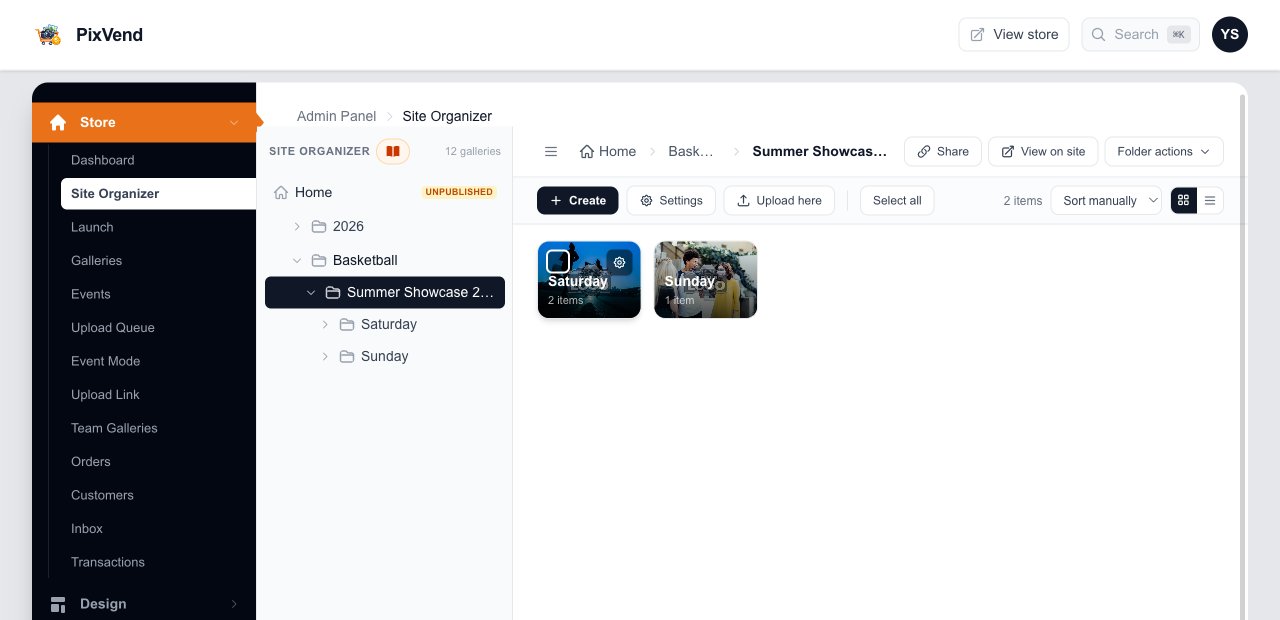
Open the Site Organizer
YouClick a folder in the tree to open it. Click a tile to go inside it.
Site Organizer in the menuUnder Store, near the top.
The folder treeYour whole store. Use the arrows to open a folder without leaving the one you're in.
Where you areThe path from Home to the open folder. Click any part to go back up.
What's insidePoint at a tile for its tick box (to select it) and gear (for its settings). Click the tile to open it.
How-toOpens this guide.
Next: step 2
Step 2 of 5
Make a folder
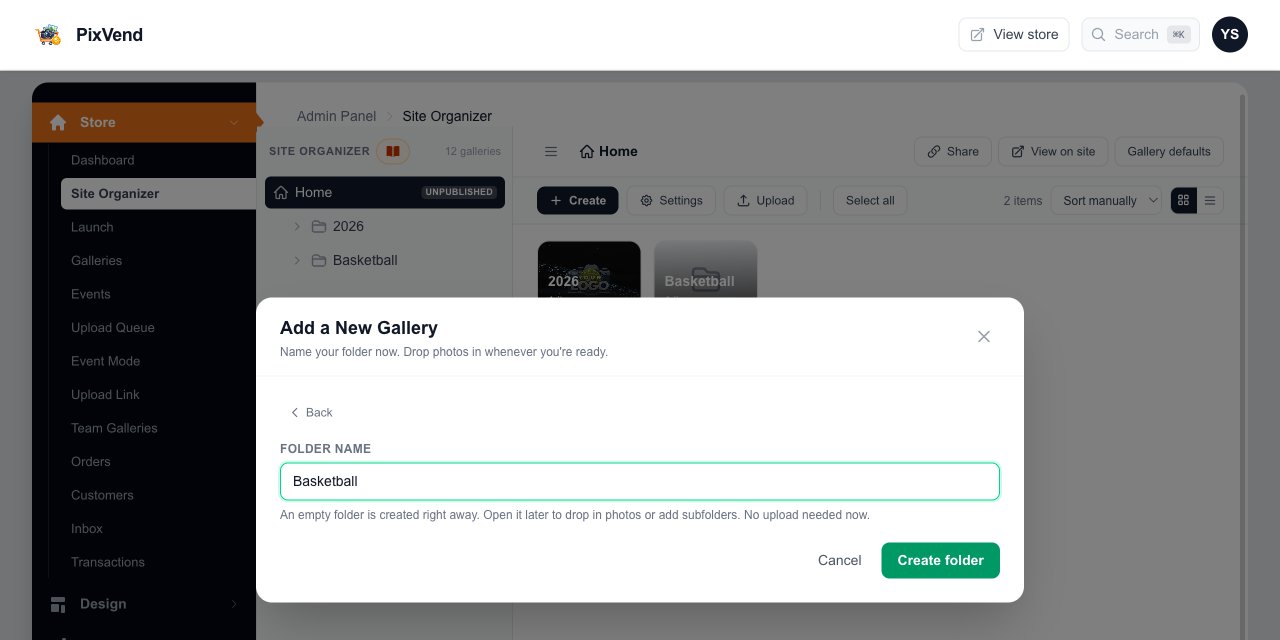
YouFolders hold other galleries: a sport, a season, a league. Open the folder you want it in first, or stay on Home for the top level.
CreateOpens the menu.
Gallery or folderUpload photos, drop a folder tree, or start an empty folder.
Web pageA page such as About or Packages, laid out in the Site Editor.
Name itAfter Gallery or folder, pick Create Empty Folder and type a name. Buyers see this name.
Create folderIt appears right away as a draft. Nobody sees it until you publish it.
Next: step 3
Step 3 of 5
Move galleries into it
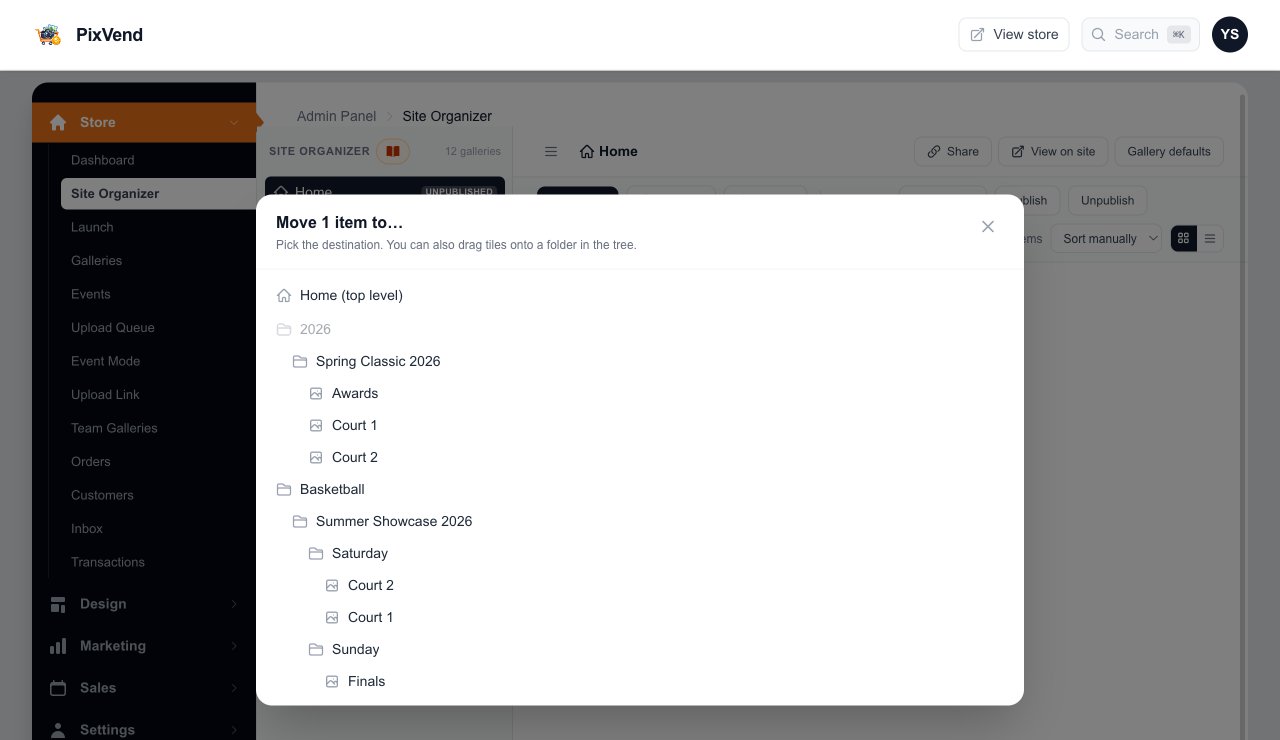
YouMoving takes everything inside along with it: sub-galleries, photos, prices and covers. Web addresses update to the new place.
Tick the ones to moveShift-click to tick a run of tiles, or press Select all.
Move toOpens a list of every folder in your store.
Or dragDrag the tiles onto a folder in the tree.
Pick the destinationClick the folder. What you're moving is greyed out, since a folder can't go inside itself.
Home (top level)Moves it back to the top of your store.
Next: step 4
Step 4 of 5
Rename, set the cover, publish
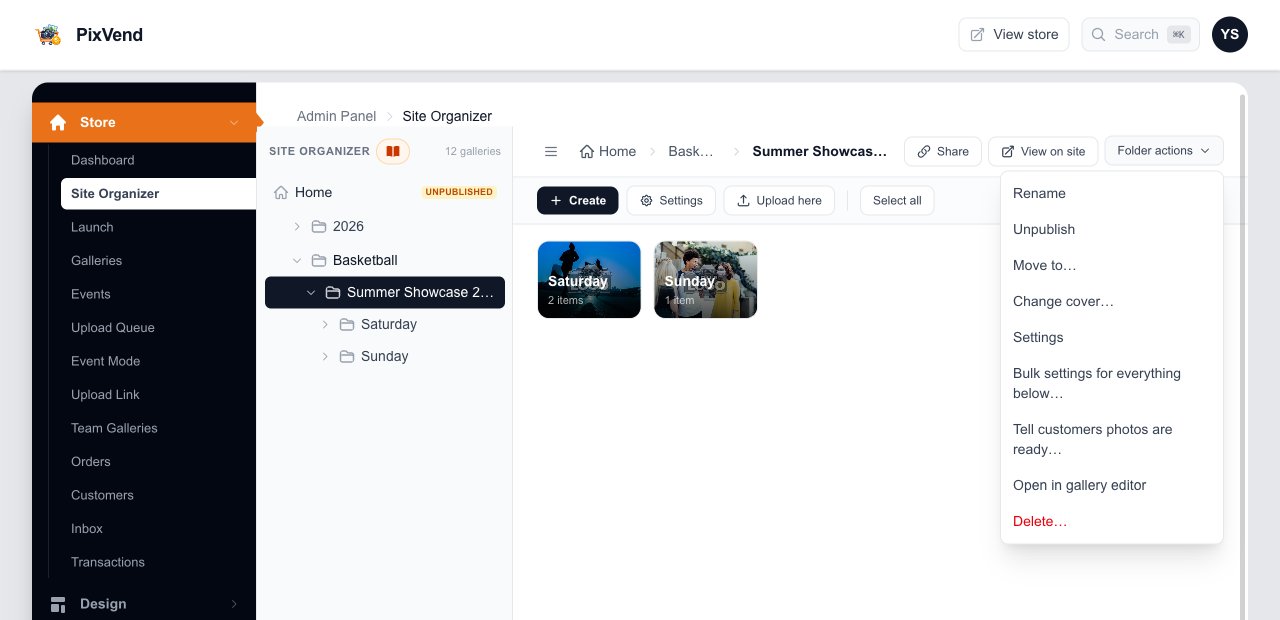
YouOpen a folder or gallery, then use Folder actions (Gallery actions for a gallery) at the top right.
RenameChanges the name buyers see, and its web address with it, unless you set a custom address in Gallery URLs.
Publish or UnpublishUnpublished folders are hidden from buyers. Copy pre-release link lets you share one before it's public.
Change coverPick the photo on its tile. A folder can use any photo from the galleries inside it.
Bulk settings for everything belowSet the price, print markup, visibility, password, photo order or grid columns for every gallery in this folder at once.
Tell customers photos are readyEmails everyone who asked to hear about this event and everyone who bought from it, plus a text where they opted in.
Next: step 5
Step 5 of 5
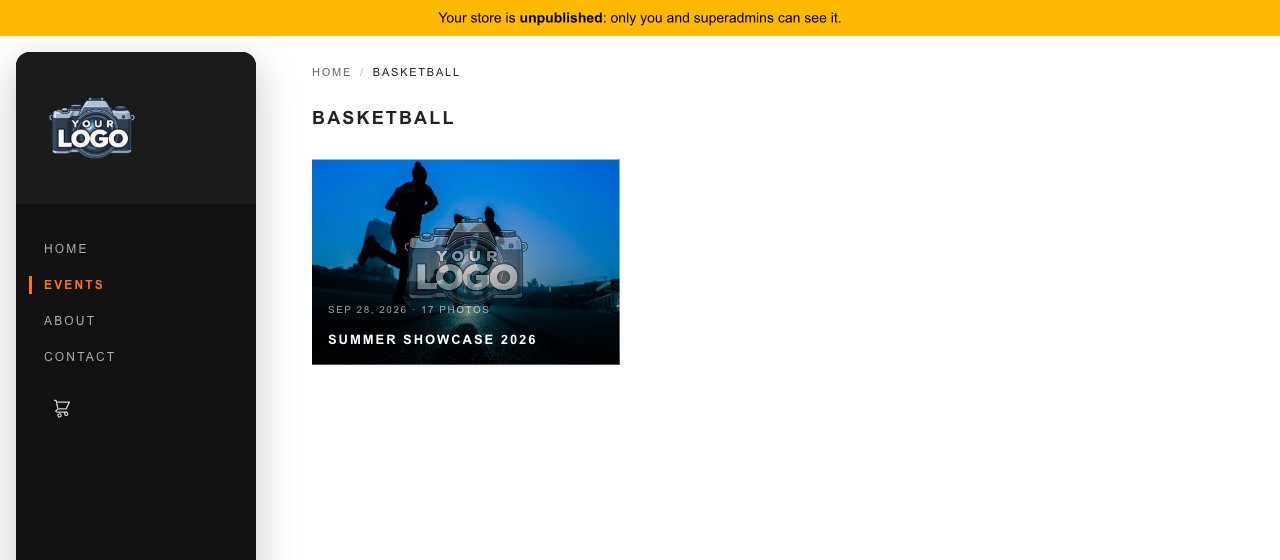
Buyers click through the same folders
BuyersYour store shows the tree you built. Each folder is a page of tiles, each with its cover, and a gallery shows its photos.
Settings for one gallery
YouThe gear on a tile, or Settings in the toolbar, changes one gallery without touching your store-wide defaults.
Four tabsDisplay (sort order, columns, layout), Pricing, Layout, and Access (password and watermark).
Use global defaultEvery setting starts on your store default, shown in grey above it. Change only what this gallery needs.
Save SettingsApplies to this gallery only. For a whole folder, use Bulk settings.
Choosing the order buyers see
YouDrag tiles in the Site Organizer, or cards on the Galleries page. Either one sets the order on your store.
SortName or date, newest or oldest first. Sort first, then drag to fine-tune.
Drag to reorderDrag a card to a new spot. It saves as soon as you let go.
Gallery settingsThe gear on each card. Point at a card for New Cover (random) and Change Cover.
Good to know
Folders inside folders: sport, season, event, day, court.
Drag a card onto another on the Galleries page to nest it, and an Undo button shows for a few seconds.
New folders start unpublished, so you can build the whole event before anyone sees it.
Tick galleries or photos and press Download for a ZIP of your original files.
- Does moving a gallery break links I already shared?
- Links to the old spot stop working, because the web address follows the folder path. Move galleries before you share them, or reshare the link.
- Can I move photos between galleries?
- Yes. Open a gallery, tick the photos and press Move to.
- What's the difference between a folder and a gallery?
- A folder holds other galleries; a gallery holds photos. Buyers see both as tiles. A gallery can hold photos and sub-galleries at the same time.
- How do I delete a folder?
- Folder actions, then Delete. It deletes everything inside it too, so move anything you want to keep out first.