
Let buyers find their photos with a selfie
At a big event, nobody wants to scroll through 5,000 photos. Find My Photos lets parents and athletes upload a selfie, or type a jersey number, and see only the photos they're in.
Business and Enterprise plans, or the Find My Photos add-on on Starter. 4 steps. Last checked September 28, 2026.
Step 1 of 4
Turn on face and jersey search
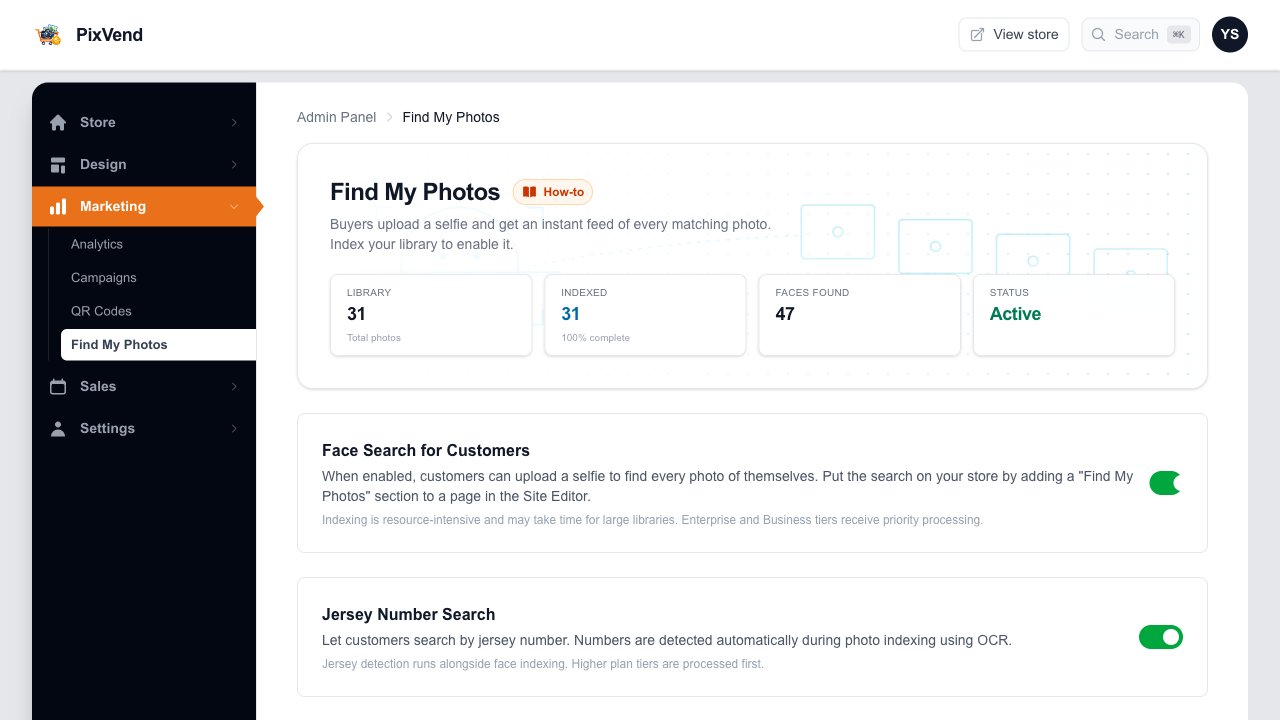
YouMarketing, then Find My Photos. Switch on the searches you want; PixVend scans your photos straight away.
Find My PhotosUnder Marketing in the left menu.
IndexedHow many photos have been scanned. New uploads are scanned as they arrive.
Face Search for CustomersBuyers upload a selfie to find photos with their face.
Jersey Number SearchNumbers on jerseys are read from your photos so buyers can search by number.
Privacy Faces are stored only as numbers for matching, never as pictures. A buyer's selfie is used for the search and not kept.
Next: step 2
Step 2 of 4
Put the search box on your store
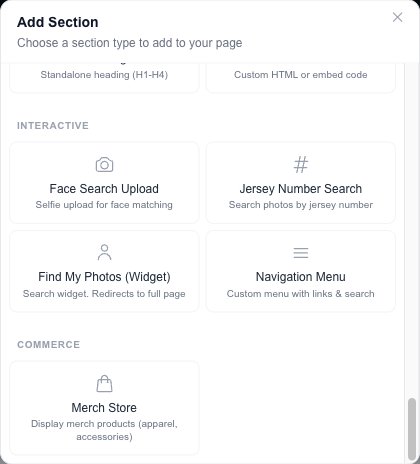
YouBuyers need a way in. In the Site Editor, open your homepage (or any page), press Add, and scroll to Interactive.
Find My Photos (Widget)A selfie box and a jersey box together. Face Search Upload and Jersey Number Search add just one of them.
Then Publish Drag it where you want it in the Sections list and press Publish. The Site Editor guide shows each step.
Next: step 3
Step 3 of 4
Buyers see the search on your page
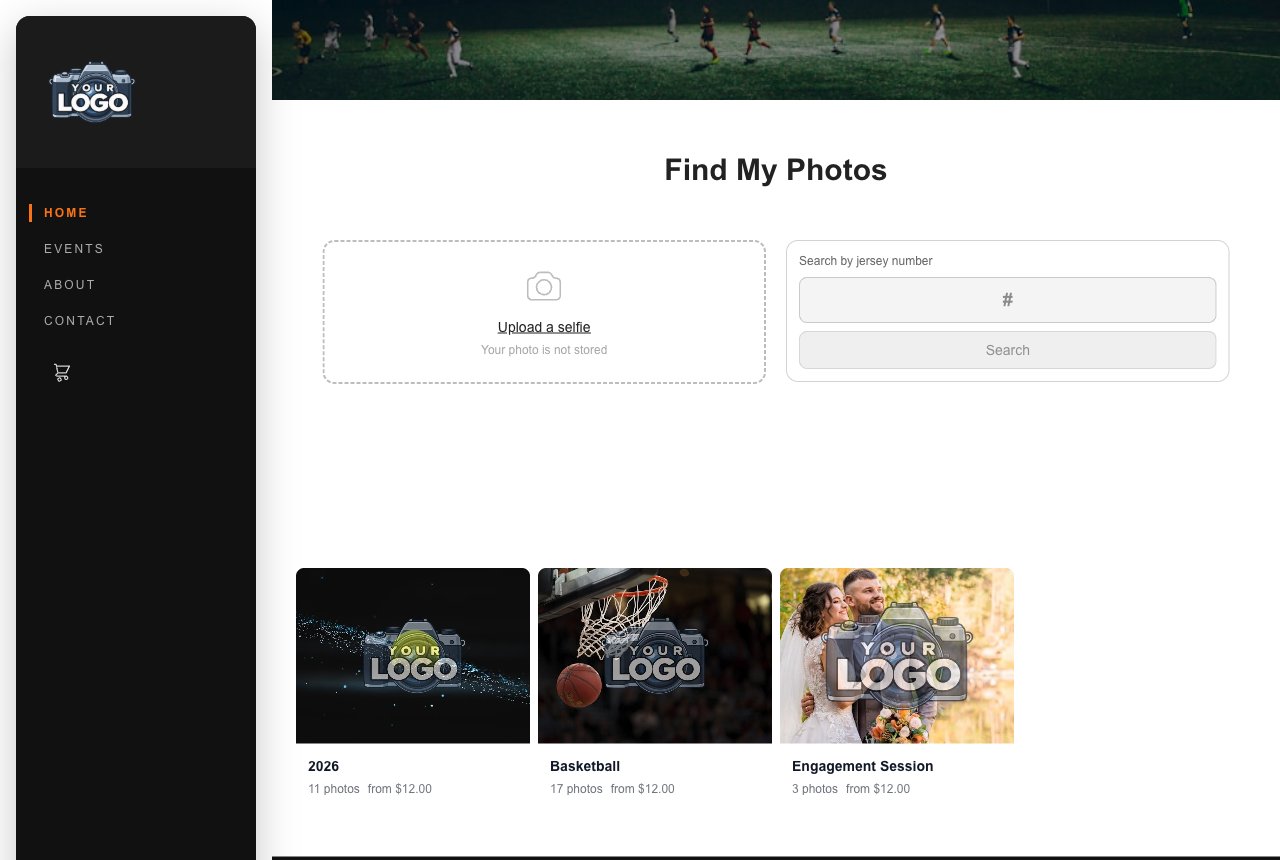
BuyersRight under your hero, before your galleries.
Upload a selfieFrom their phone's camera or photos.
Search by jersey numberType the number and press Search.
Next: step 4
Step 4 of 4
Their photos appear
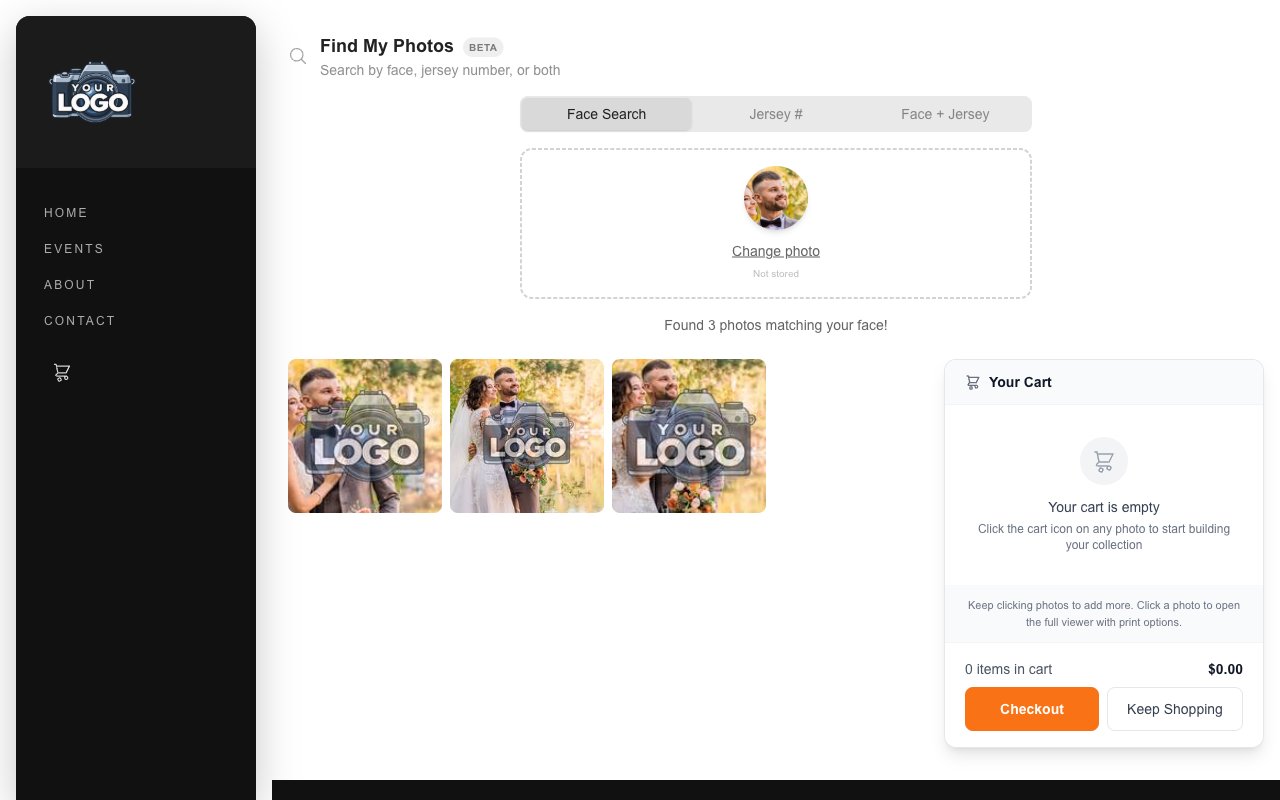
BuyersResults come back in seconds, with prices, ready to open and add to the cart.
Good to know
- How long does scanning take?
- A few seconds for a small library; big libraries take longer, and new uploads are scanned as they're processed. Business and Enterprise plans are scanned first.
- It missed some photos.
- Side-on faces, sunglasses and small faces in the background are harder to match. Jersey numbers need to be facing the camera. Buyers can still browse the gallery.
- Can I get more accurate jersey numbers?
- Yes. Under Detection Engine on the Find My Photos page you can use your own AI key for sharper number reading.