
Deliver photos to a client with a private page
For portraits, weddings and sessions a client has already paid for: one private page with their photos, a password only they know, and a Download all button.
Included on every plan. 5 steps. Last checked September 28, 2026.
 1You
1YouCreate the page
 2You
2YouAdd their photos
 3You
3YouFree, no watermark
 4You
4YouPublish and send
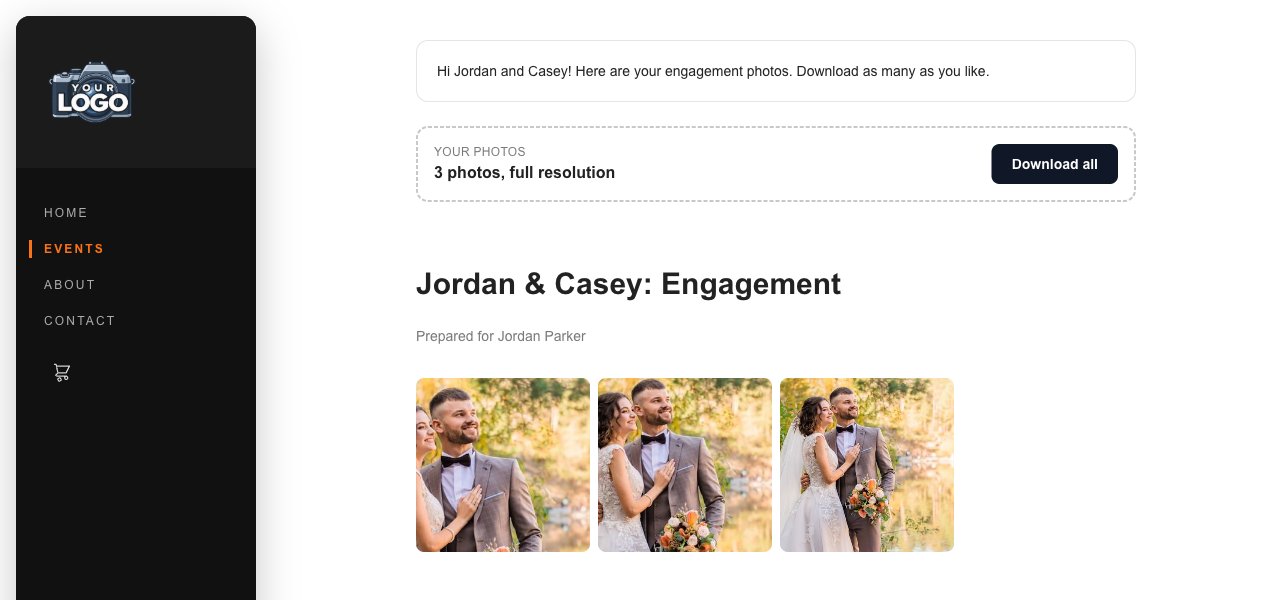 5Client
They download
Step 1 of 5
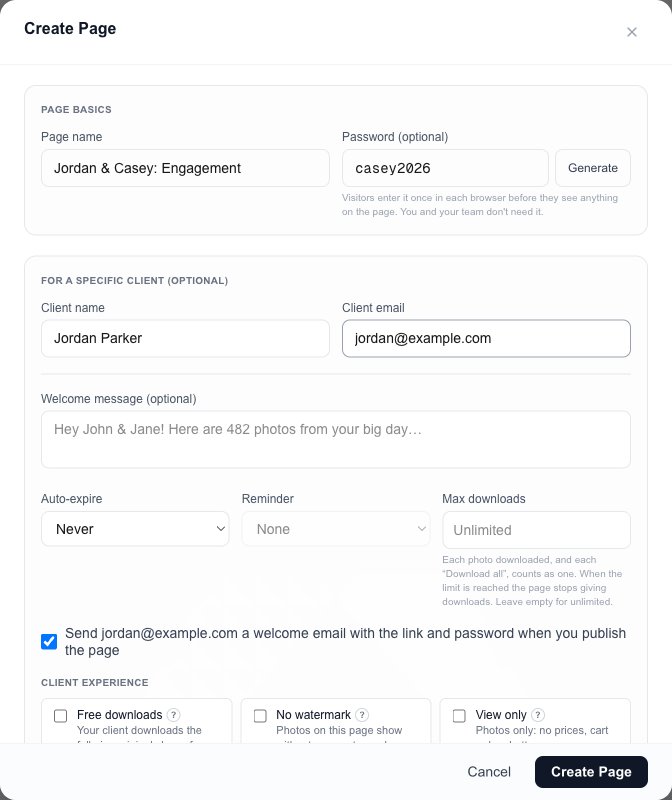
Create the page
YouDesign, then Pages, then Create Page.
Page nameIt becomes the page's web address: /pages/jordan-casey-engagement.
PasswordOptional. Type one or press Generate. The client enters it once per browser; you don't need it.
Client name and emailMakes it a client page, shown as Prepared for Jordan Parker.
Welcome emailSends the client the link and password when you publish the page. Untick it to send the link yourself.
Create PageIt starts as a draft, and the photo picker opens next.
Next: step 2
Step 2 of 5
Add their photos
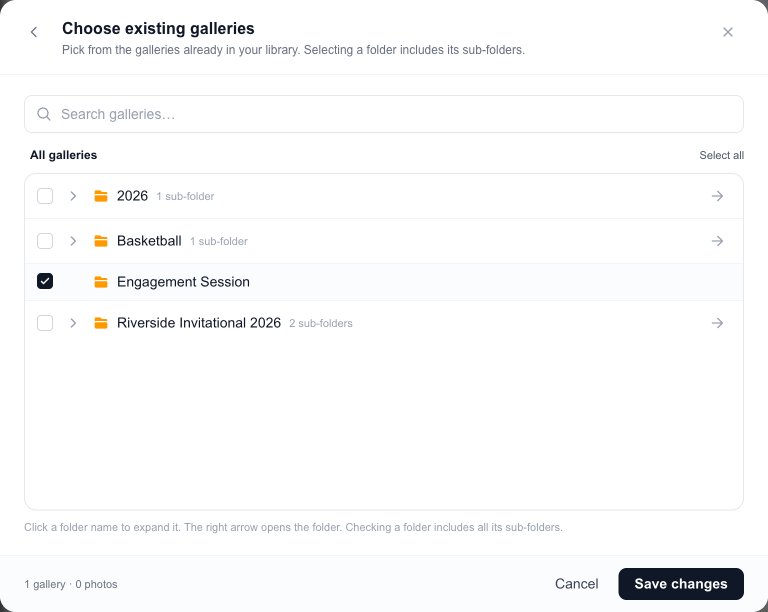
YouManage Content offers three ways in: pick galleries you've already uploaded, pin single photos, or upload new ones.
Tick their galleryTicking a folder includes every gallery inside it.
Save changesThe page shows the photos straight away; nothing is copied or uploaded twice.
Next: step 3
Step 3 of 5
Choose how they get their photos
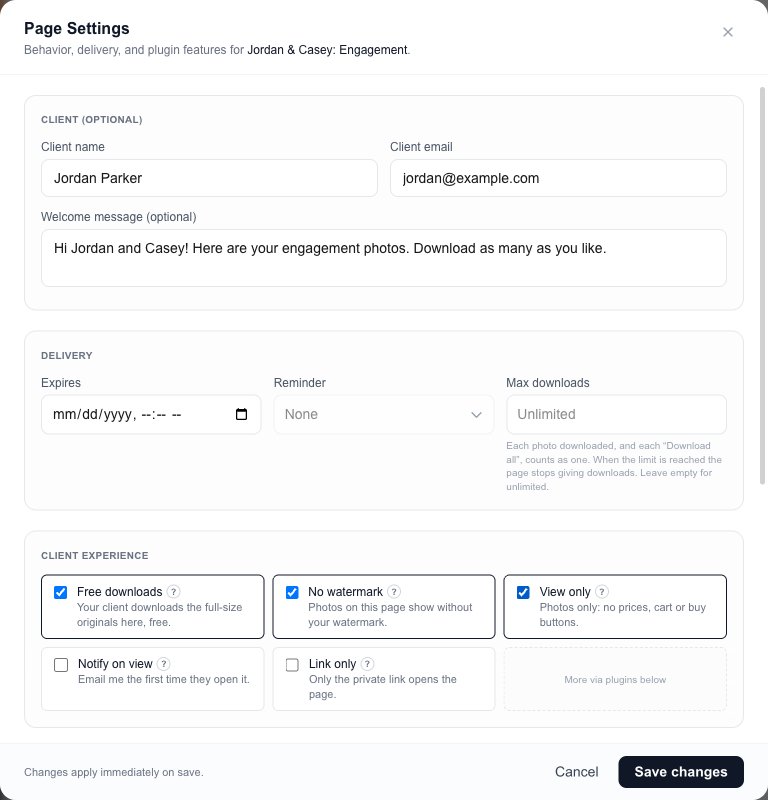
YouSettings on the page's card.
Welcome messageShown at the top of their page.
Expires and max downloadsClose the page on a date (with a reminder email before), or cap how many downloads it gives.
Client experienceFree downloads gives them the full-size originals. No watermark shows clean photos. View only hides prices and the cart. Notify on view emails you when they first open it.
Selling instead of giving? Leave Free downloads off and they buy at your usual prices, or set a Buy-it-all price for one button that buys every photo on the page.
Next: step 4
Step 4 of 5
Publish and send the link
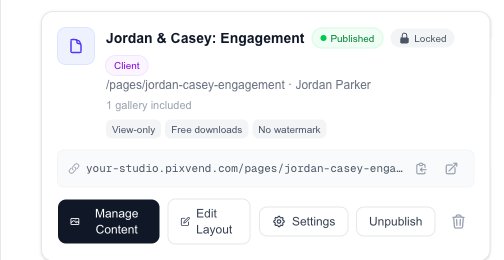
YouPress Publish on the card. If you ticked the welcome email, it goes to your client now.
At a glancePublished or Draft, Locked (has a password), and the options you chose.
The linkCopy it to send yourself, or open the page to check it.
Manage ContentAdd or remove photos at any time, even after it's published.
Next: step 5
Step 5 of 5
Your client downloads their photos
ClientThey open the link, type the password, and see only their photos.
Your welcome messageThe note you wrote in Settings.
Download allEvery photo as one ZIP, full resolution. Each photo can also be downloaded on its own.
No watermarkTheir photos, clean. Buyers elsewhere on your store still see your watermark.
Good to know
- Can other people find the page?
- It isn't listed anywhere on your store. Add a password, or tick Link only so only the private link opens it.
- Can I reuse a page for a second session?
- Yes. Manage Content to swap the galleries, and change the name or password in Settings.
- What about pages that aren't for one client, like Packages or FAQ?
- Same Create Page button; leave the client fields empty, then lay the page out in the Site Editor with Edit Layout.